
Printer
The instructions below will walk you through the process of launching a simple printer workflow using the Fuzzball workflow catalog. The workflow catalog will help you generate, validate, and submit a Fuzzfile representing the printer workflow. This workflow uses a public Alpine Linux container from Dockerhub to print 1 integer every second for a configurable number of seconds. This simple workflow will help familiarize you with Fuzzball’s real-time logging feature, and can also be used to experiment with Fuzzball’s in-job terminal.
You can run this workflow either through the web UI or the CLI.
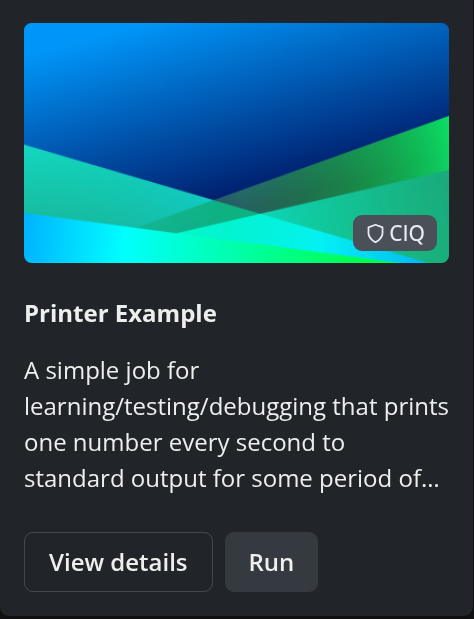
If you click “Workflow Catalog”, you will see a page of workflow templates you use to create
fuzzfiles and launch workflows. Search for Printer and click the Printer Example tile – the
CIQ tag marks it as a template provided by CIQ – to open its detail page.
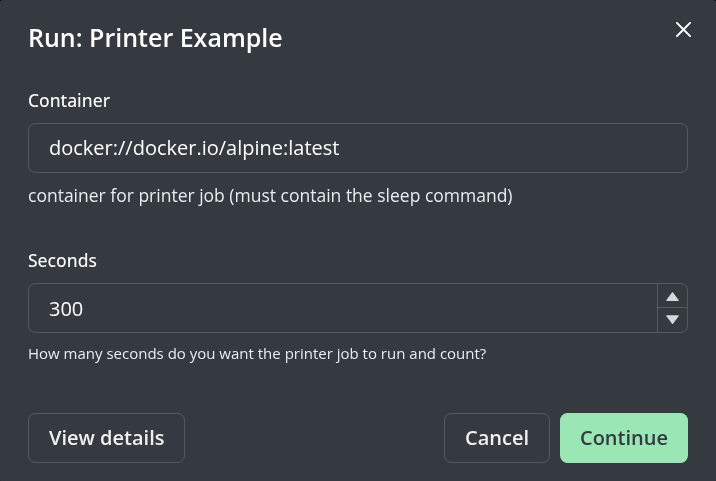
The template’s detail page shows a Configure panel on the right listing the template parameters, which you can modify. You can also give this run an optional descriptive name in the Run Name field. Once you are done setting parameters, or you decide to accept the default values, click RUN to generate a Fuzzfile from the workflow template and the supplied values, validate it, and submit it.
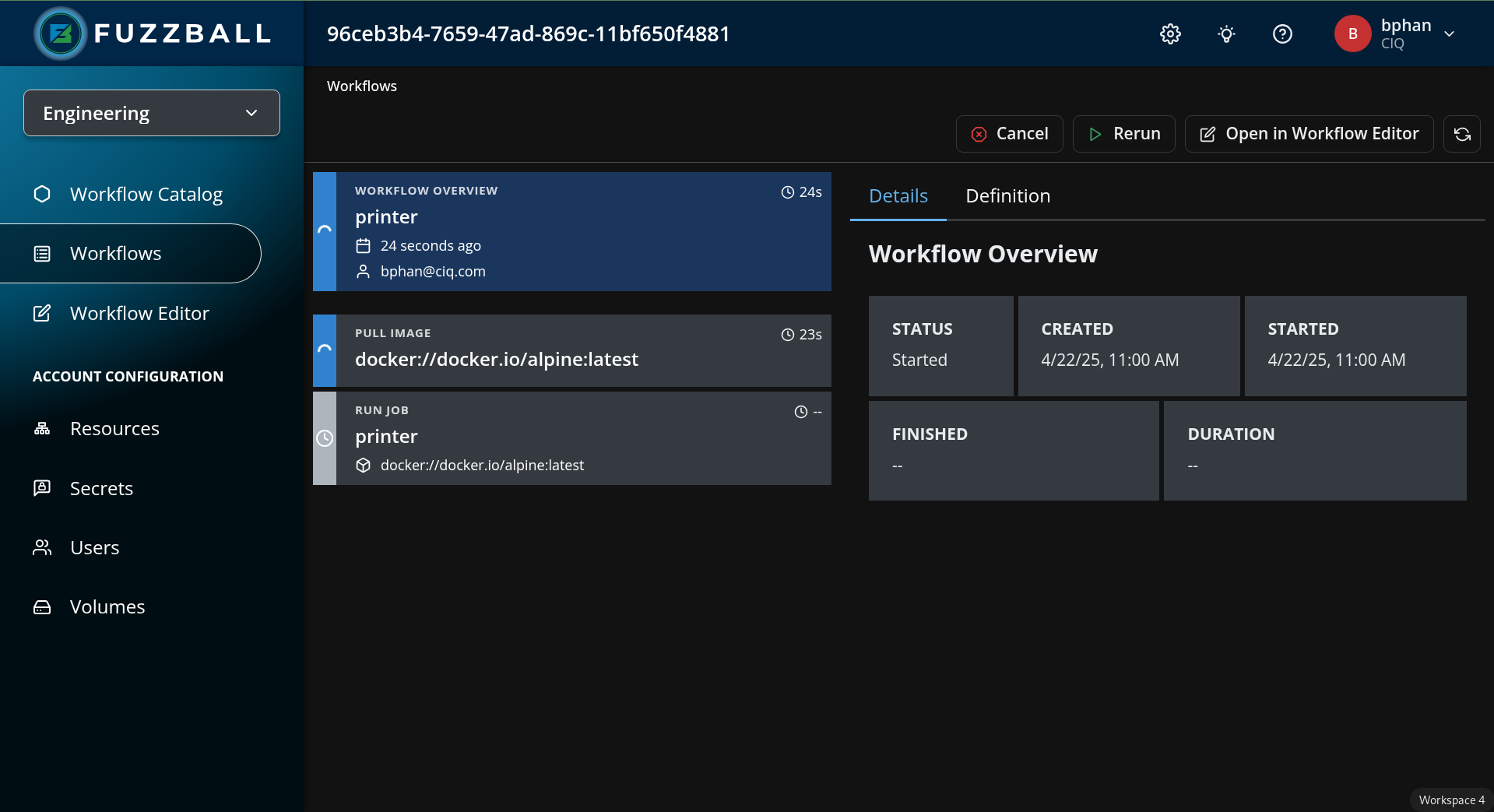
Submitting the workflow takes you straight to its status page. The screenshot below shows the status page for a printer workflow submission.
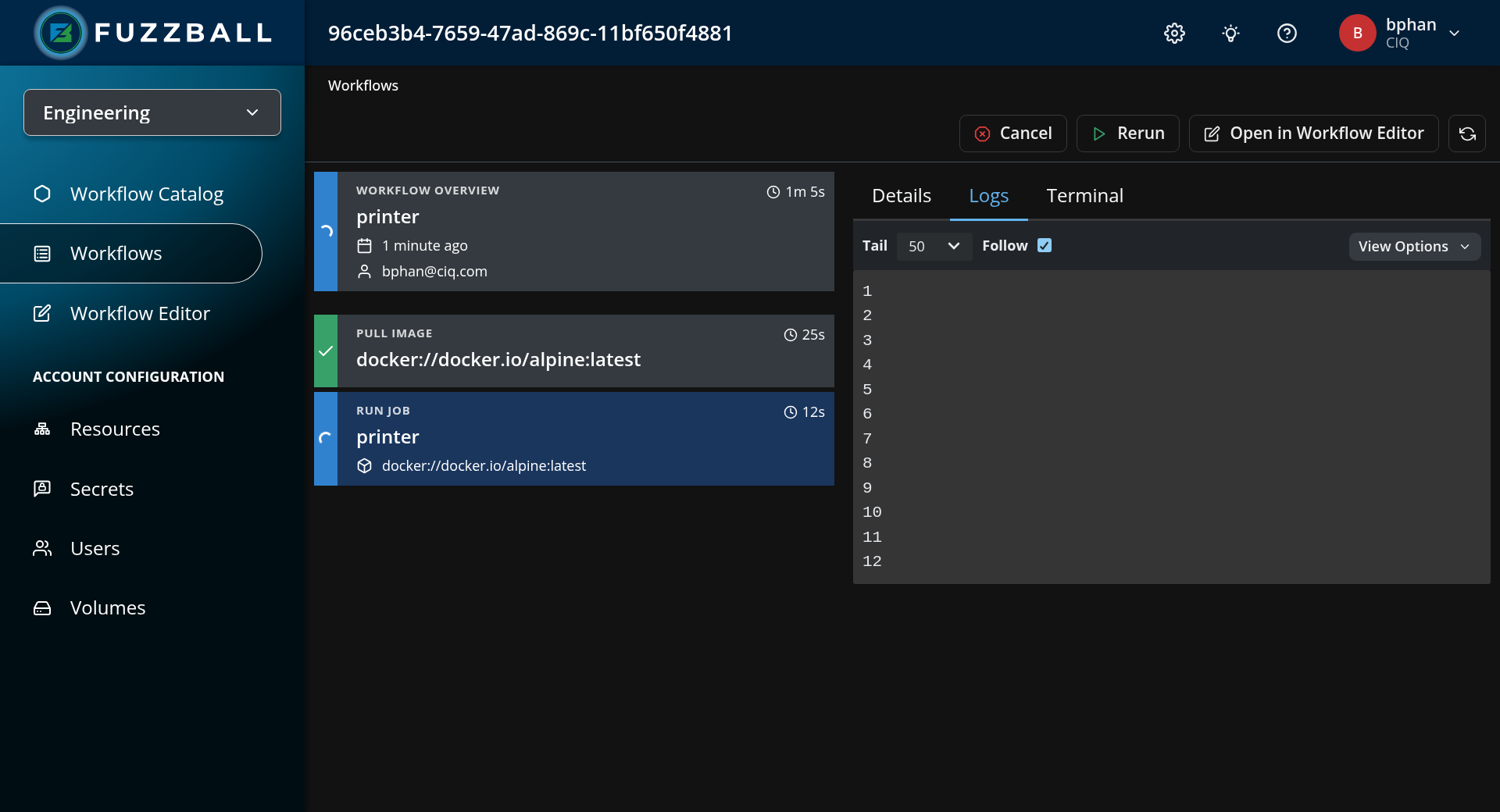
To retrieve logs produced by this workflow, select the printer job – either by clicking its node
on the canvas or by choosing Run Job: printer from the stage drop down below the canvas – and
then click the Logs tab in the panel on the right.
Selecting the Terminal tab for a running job will allow you to interact with the job from a shell session within the running container.
To run this workflow through the CLI you will need access to the Fuzzball CLI. You can install it using the Fuzzball CLI installation instructions.
First, you can create a values file values.yaml to populate the printer example workflow template
using the command below. You can modify the parameters to your desired values or use the defaults
below.
$ cat >values.yaml<<EOF
values:
  - name: "Container"
    display_name: "container for printer job (must contain the sleep command)"
    string_value: "docker://docker.io/alpine:latest"
  - name: "Seconds"
    display_name: "How many seconds do you want the printer job to run and count?"
    uint_value: 300
EOF
Next, you will need to find the workflow template. The command below lists workflow templates
provided by CIQ. The ID shown is an example value: template IDs are specific to a cluster and to
the catalog repository the template came from, so yours will differ. render and start also
accept the template name, which is what the examples below use – provided no other catalog
repository publishes a template of that name.
$ fuzzball workflow catalog list --provider CIQ --name '*Printer*'
ID                                   | NAME
c8cc813e-c29b-5461-bc43-2d53f62a3634 | Printer Example
You can generate a Fuzzfile using the workflow template and the values file (values.yaml) we created in the first step using the command below.
$ fuzzball workflow catalog render --values values.yaml 'Printer Example' > printer.fzYou can start this workflow using the CLI by running the following command:
$ fuzzball workflow start printer.fz
1e5a3e07-3dd6-4462-b958-a4a396294d3a
The two steps - rendering a concrete workflow from a template and user-defined parameters followed by submitting the concrete workflow - can be combined into a single command with
$ fuzzball workflow catalog start --name "printer test" --values values.yaml 'Printer Example'
Workflow "6665ab2e-ded0-46b0-bee2-6a11f8cb1785" started.
You can monitor the workflow’s status by running the following command:
$ fuzzball workflow describe 1e5a3e07-3dd6-4462-b958-a4a396294d3a
Name:      printer.yaml
Email:     user1@ciq.com
UserId:    e554e134-bd2d-455b-896e-bc24d8d9f81e
Status:    STAGE_STATUS_STARTED
Created:   2024-06-27 01:56:58PM
Started:   2024-06-27 01:56:58PM
Finished:  N/A
Error:


KIND     | STATUS   | NAME                                 | DURATION
Workflow | Started  | 1e5a3e07-3dd6-4462-b958-a4a396294d3a | 3m15s
Image    | Finished | docker://alpine:latest               | 15s
Job      | Started  | printer                              | 2m45s
You can view outputs logged by the workflow, by executing the following command:
$ fuzzball workflow log 1e5a3e07-3dd6-4462-b958-a4a396294d3a printer
1
2
3
4
...
Create a shell in the running container like so:
$ fuzzball workflow exec --tty 1e5a3e07-3dd6-4462-b958-a4a396294d3a printer -- /bin/sh
~ $ echo $HOSTNAME
printer
~ $ echo $FB_WORKFLOW_ID
1e5a3e07-3dd6-4462-b958-a4a396294d3a