
Starting a Jupyter Notebook
The instructions below will walk you through the process of launching a Jupyter Server workflow using the Fuzzball workflow catalog. The workflow catalog will help you generate, validate, and submit a Fuzzfile which runs a Jupyter Notebook. By default, this workflow uses a Jupyter container from quay.io.
You can start this workflow using either the web UI or the CLI.
If you click “Workflow Catalog”, you will see a page of workflow templates you use to create
fuzzfiles and launch workflows. Using the search bar, find the Jupyter Server tile – the CIQ
tag marks it as a template provided by CIQ – and click it to open its detail page.

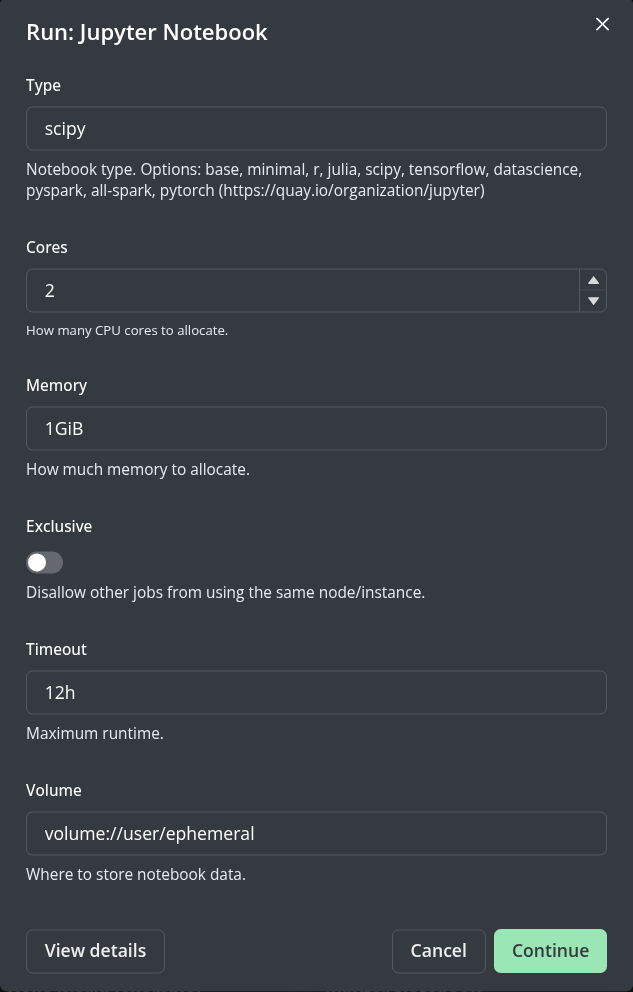
The template’s detail page shows a Configure panel on the right listing the template parameters, which you can modify. You can also give this run an optional descriptive name in the Run Name field. If you’d like to accept the default values, you can click RUN, which validates the Fuzzfile generated from the input specified and submits it.
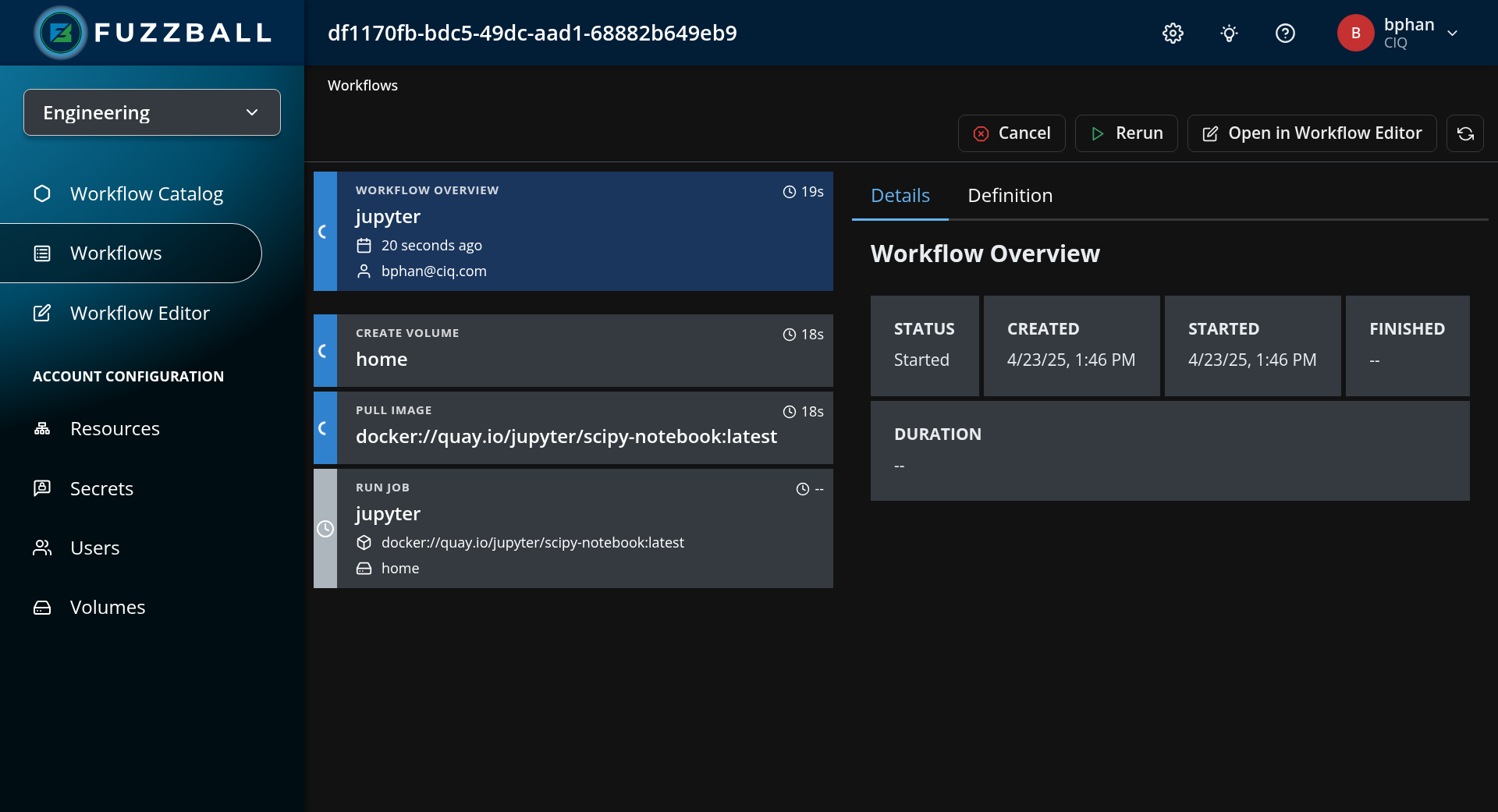
Submitting the workflow takes you straight to its status page. The screenshot below shows the status page for a Jupyter Notebook workflow submission.
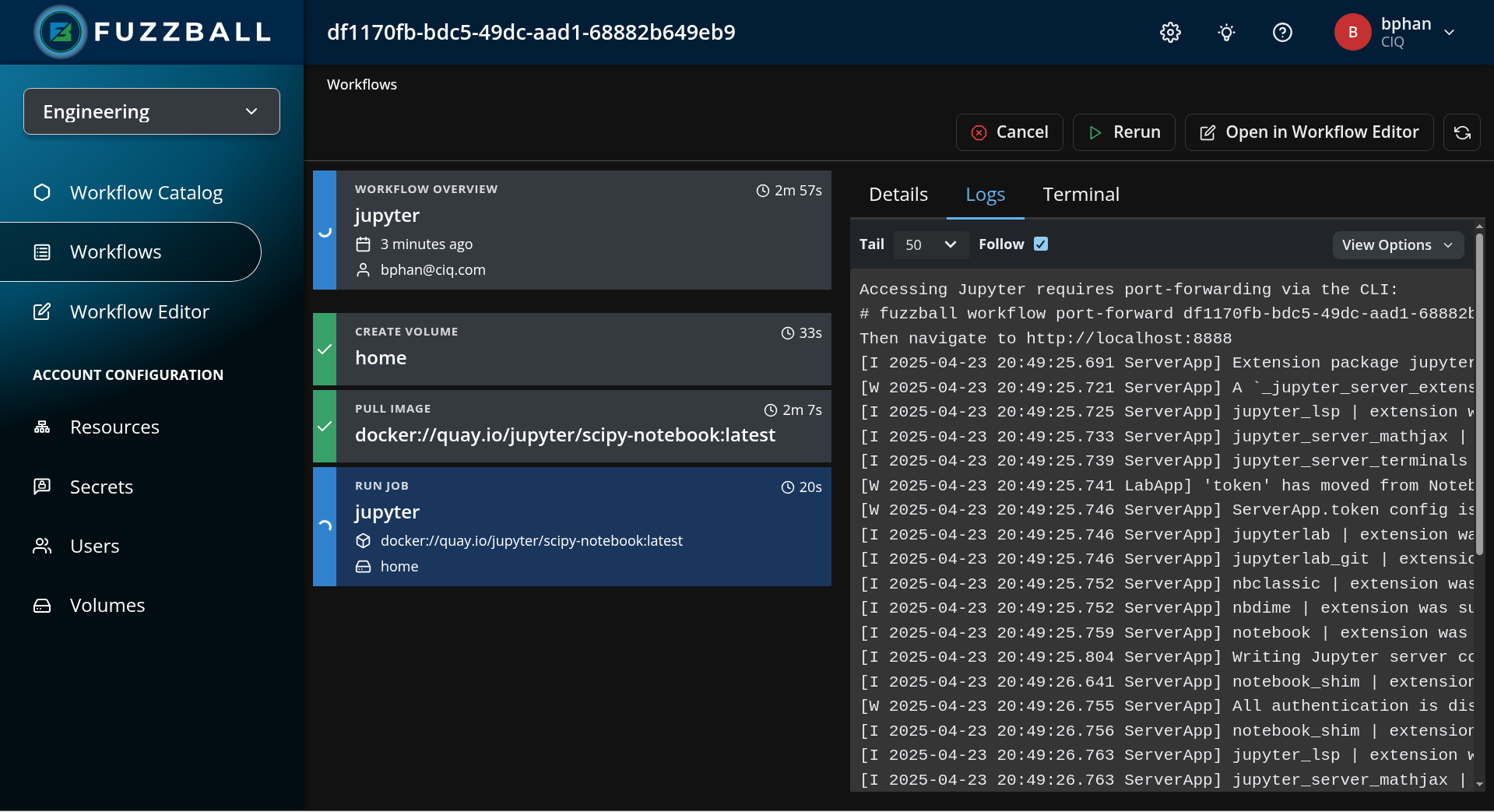
To retrieve logs produced by this workflow, select the jupyter job – either by clicking its node
on the canvas or by choosing it from the stage drop down below the canvas – and then click the
Logs tab in the panel on the right.
To run this workflow through the CLI you will need access to the Fuzzball CLI. You can install it using the Fuzzball CLI installation instructions.
First, you can create a values file values.yaml to populate the Jupyter Server workflow template
using the command below. You can modify the parameters to your desired values or use the defaults
below.
$ cat >values.yaml<<EOF
values:
  - name: "Type"
    string_value: "r"
  - name: "Cores"
    uint_value: 1
  - name: "Memory"
    string_value: "4GiB"
  - name: "GPUs"
    uint_value: 0
  - name: "Exclusive"
    bool_value: false
  - name: "Volume"
    string_value: "volume://user/persistent"
  - name: "ServiceScope"
    string_value: "user"
EOF
Next, you will need to find the workflow template. The command below lists workflow templates
provided by CIQ. The ID shown is an example value: template IDs are specific to a cluster and to
the catalog repository the template came from, so yours will differ. start also accepts the
template name, which is what the example below uses – provided no other catalog repository
publishes a template of that name.
$ fuzzball workflow catalog list --provider CIQ --name '*Jupyter*'
ID                                   | NAME
f94e0a09-8d20-52da-b69d-825ab4824ded   Jupyter Server
You can start a workflow with the workflow template and the values file (values.yaml) we created in the first step using the command below.
$ fuzzball workflow catalog start --values values.yaml 'Jupyter Server'
Workflow "0345befe-32b0-42c1-9b82-03d3d1c38434" started.
You can monitor the workflow’s status by running the following command:
$ fuzzball workflow describe 0345befe-32b0-42c1-9b82-03d3d1c38434
Name:      jupyter test
Email:     wresch@ciq.com
UserId:    87145648-b830-4291-ab7e-40880d61334e
Status:    STAGE_STATUS_STARTED
Cluster:   fuzzball-aws-stable
Created:   2026-04-06 12:55:25PM
Started:   2026-04-06 12:55:26PM
Finished:  N/A
Error:


KIND     | STATUS   | NAME                                       | DURATION
Workflow | Started  | 0345befe-32b0-42c1-9b82-03d3d1c38434       | 4m
Volume   | Finished | data                                       | 2s
Image    | Finished | docker://quay.io/jupyter/r-notebook:latest | 1m59s
Service  | Started  | jupyter                                    | 30s
You can view outputs logged by the workflow, by executing the following command:
$ fuzzball workflow log 0345befe-32b0-42c1-9b82-03d3d1c38434 jupyter
...
[I 2026-04-06 16:59:31.968 LabApp] JupyterLab extension loaded from /opt/conda/lib/python3.13/site-packages/jupyterlab
[I 2026-04-06 16:59:31.968 LabApp] JupyterLab application directory is /opt/conda/share/jupyter/lab
[I 2026-04-06 16:59:31.969 LabApp] Extension Manager is 'pypi'.
[I 2026-04-06 16:59:32.071 ServerApp] jupyterlab | extension was successfully loaded.
[I 2026-04-06 16:59:32.092 ServerApp] nbclassic | extension was successfully loaded.
[I 2026-04-06 16:59:32.096 ServerApp] notebook | extension was successfully loaded.
[I 2026-04-06 16:59:32.097 ServerApp] Serving notebooks from local directory: /data
[I 2026-04-06 16:59:32.097 ServerApp] Jupyter Server 2.17.0 is running at:
[I 2026-04-06 16:59:32.097 ServerApp] http://jupyter:27760/endpoints/accounts/b95f6f1b-1c70-491f-b83c-24eb89382f29/workflows/0345befe-32b0-42c1-9b82-03d3d1c38434/jupyter/jupyter/lab
[I 2026-04-06 16:59:32.097 ServerApp]     http://127.0.0.1:27760/endpoints/accounts/b95f6f1b-1c70-491f-b83c-24eb89382f29/workflows/0345befe-32b0-42c1-9b82-03d3d1c38434/jupyter/jupyter/lab
[I 2026-04-06 16:59:32.097 ServerApp] Use Control-C to stop this server and shut down all kernels (twice to skip confirmation).
[I 2026-04-06 16:59:33.338 ServerApp] Skipped non-installed server(s): basedpyright, bash-language-server, dockerfile-language-server-nodejs, javascript-typescript-langserver, jedi-language-server, julia-language-server, pyrefly, pyright, python-language-server, python-lsp-server, r-languageserver, sql-language-server, texlab, typescript-language-server, unified-language-server, vscode-css-languageserver-bin, vscode-html-languageserver-bin, vscode-json-languageserver-bin, yaml-language-server
Currently you need to use the UI to access the service endpoints.