
Fuzzfiles From Existing Templates
The Workflow Catalog is prepopulated with a set of official CIQ templates based on common applications and workflows. If you use a shared group, you may also see templates created by other users within your group.
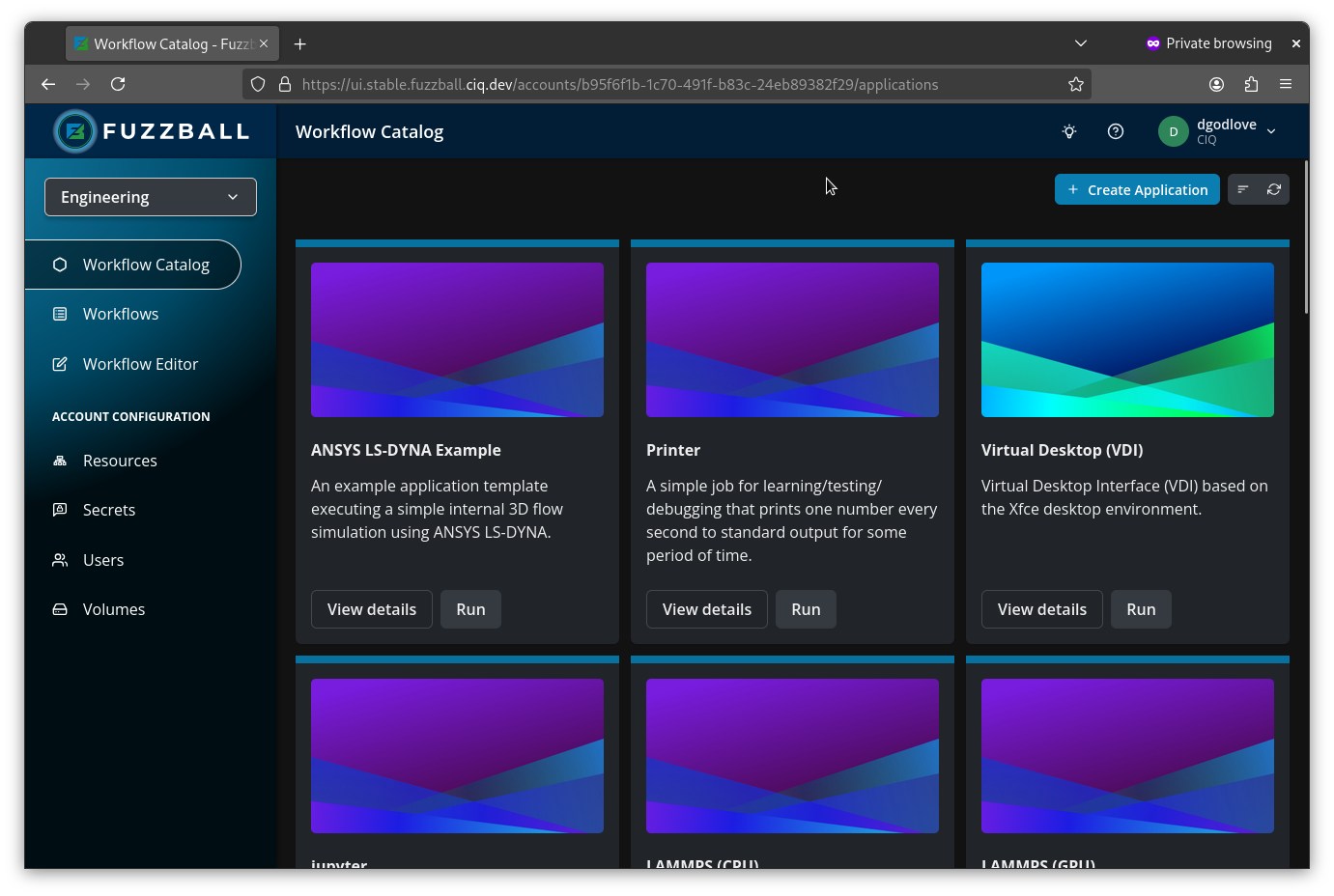
Once you identify an interesting template, click within the template description box to open its detail page. Cards in the Featured carousel also carry their own RUN button, so you can launch one of those directly from the main page.
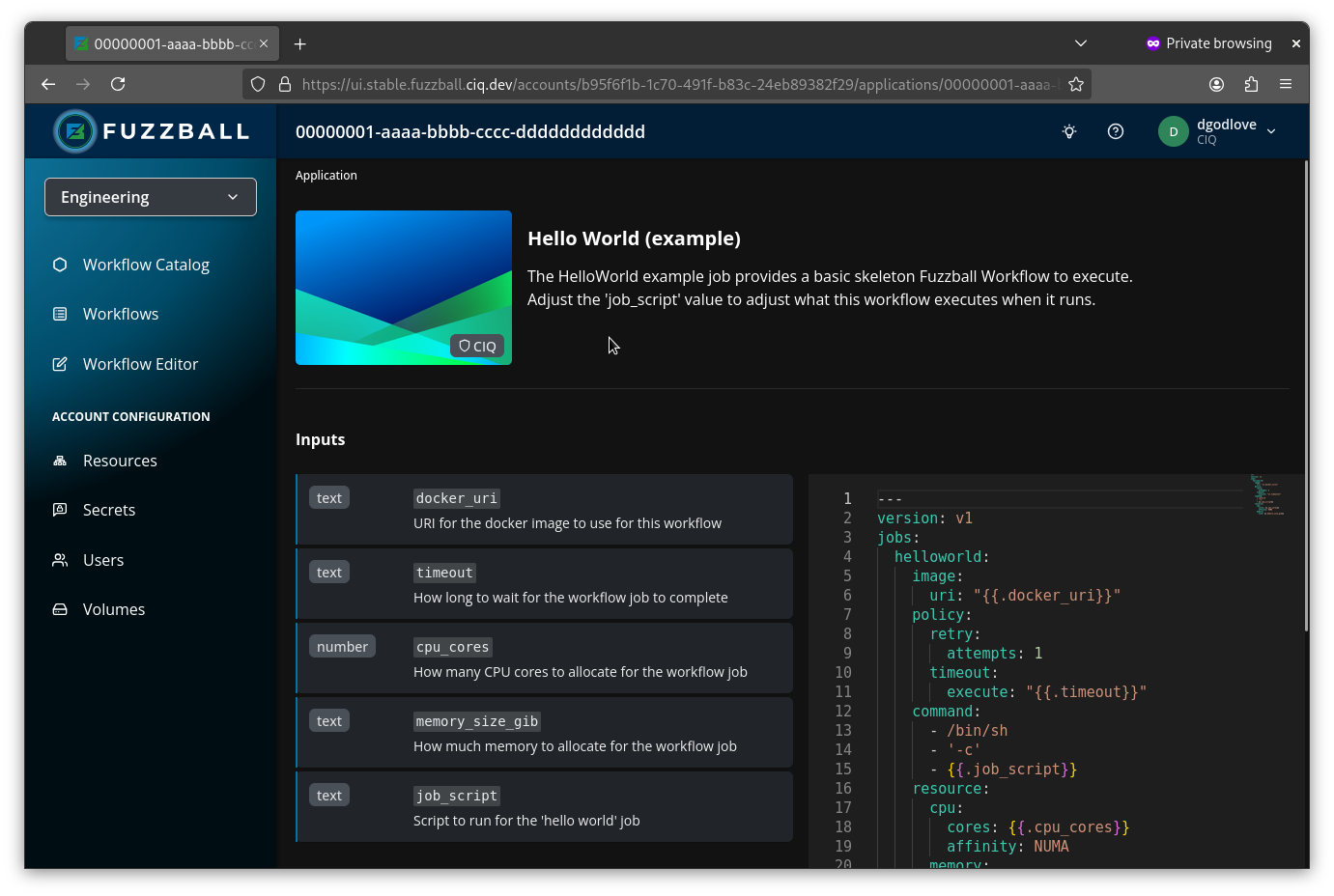
The detail page shows the template’s Configure panel on the right. Make any desired changes to the input values there – inputs are grouped into collapsible sections, each labeled with its category name and the number of fields it holds – then choose either RUN or OPEN IN EDITOR.
If you selected RUN, a Fuzzfile will be created behind the scenes, validated for accuracy, and launched, and you are taken straight to the new workflow’s status page.
Workflow names are optional – fill in Run Name at the top of the Configure panel to set one, and Fuzzball uses the template name if you leave it blank. Providing a descriptive name can help you manage workflows, especially when running multiple instances of the same template.
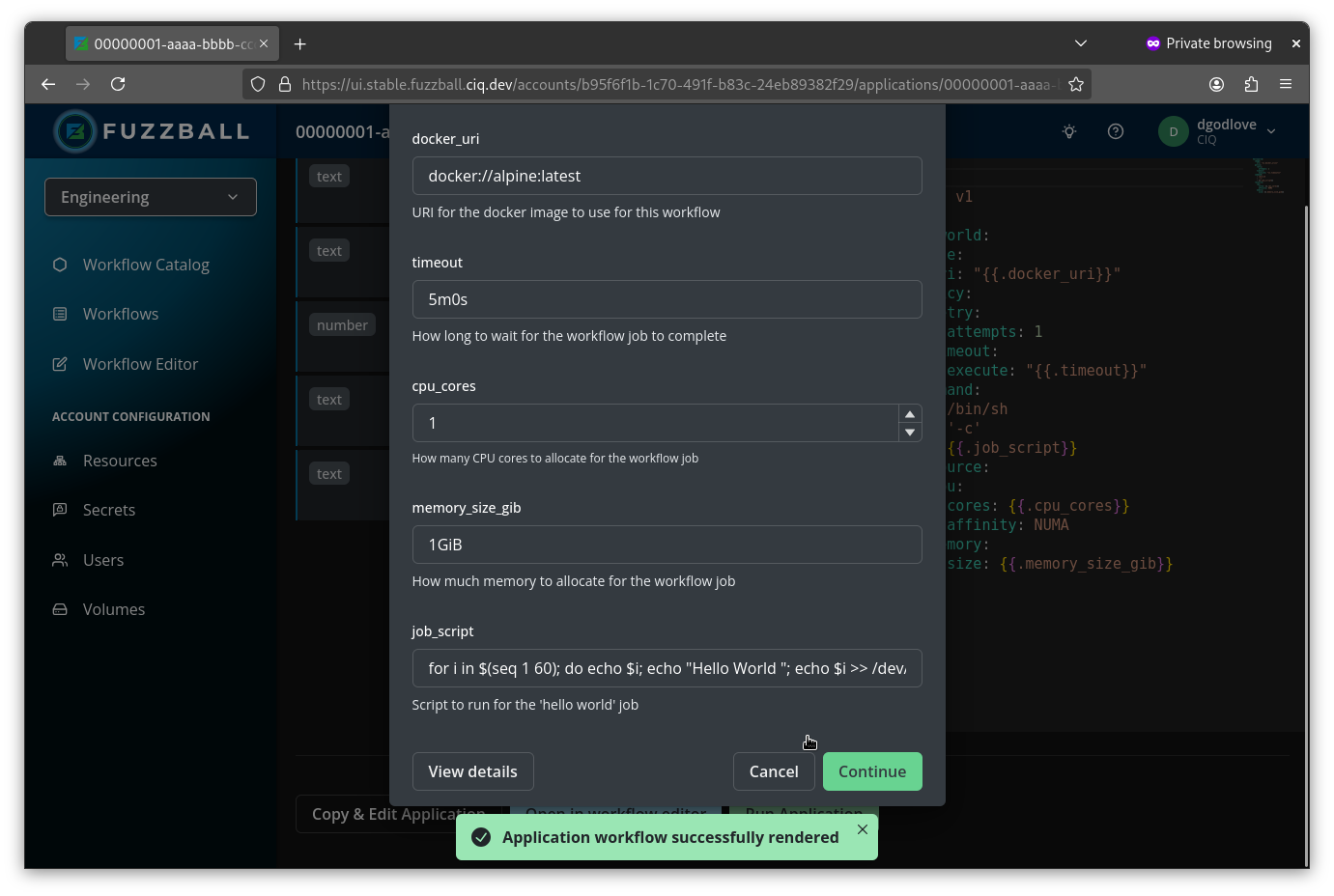
If you selected “Open in Editor”, the Workflow Editor will open with a Fuzzfile loaded based on the workflow template and the values you selected.
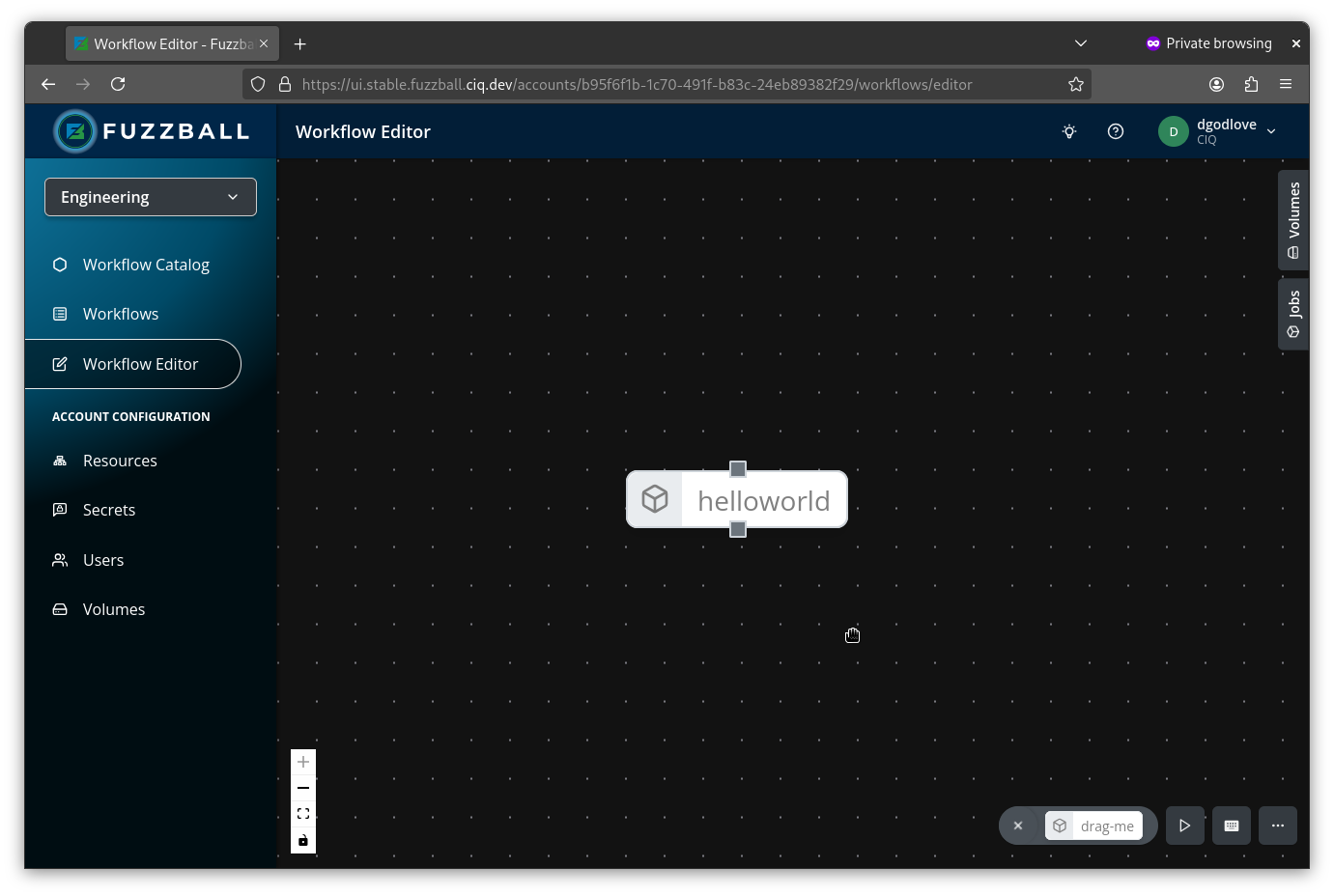
From there, you can inspect and further refine the resulting Fuzzfile, and launch a workflow based on the Fuzzfile when you are ready. See the Workflow Editor section for more details.
You can render a fuzzfile from a workflow template and values with the Fuzzball CLI. First you need to identify the template like so:
$ fuzzball workflow catalog list --name 'Hello, World'
ID                                   | NAME
7f8e322c-8d03-579c-a41b-f6257949dd17 | Hello, World
The ID above is an example value. Template IDs are specific to a cluster and to the catalog
repository the template came from, so yours will differ. Commands that take a template – render,
start, copy – also accept its name, which is what the examples below use. A name has to
identify one template on the cluster: if two catalog repositories publish templates of the same
name, the command reports the name as ambiguous and you pass the ID instead.
Then you can render a Fuzzfile from that template. You can provide the values for the template interactively like so:
$ fuzzball workflow catalog render 'Hello, World'
ContainerUri - URI for the docker image to use for this workflow [docker://alpine:latest]:
Timeout - How long to wait for the workflow job to complete [5m0s]: 4m
Cores - How many CPU cores to allocate for the workflow job [1]: 1
Memory - How much memory to allocate for the workflow job [1GiB]: 512MB
Script - Script to run for the 'hello world' job [echo "Hello, world! Hostname ${HOSTNAME}"]:
# Copyright 2025 CIQ, Inc. All rights reserved.
version: v4
jobs:
  helloworld:
    image:
      uri: "docker://alpine:latest"
    policy:
      timeout:
        execute: "4m"
    command:
      - /bin/sh
      - '-c'
      - echo "Hello, world! Hostname ${HOSTNAME}"
    resource:
      cpu:
        cores: 1
        affinity: NUMA
      memory:
        size: 512MB
Alternatively you can provide values in a yaml format file:
$ cat > values.yaml <<'__EOF__'
values:
  - name: ContainerUri
    string_value: docker://alpine:latest
  - name: Memory
    string_value: 512MB
  - name: Cores
    uint_value: 1
  - name: Timeout
    string_value: 4m
  - name: Script
    string_value: echo "Hello, cruel world from ${HOSTNAME}"
__EOF__

$ fuzzball workflow catalog render --values values.yaml 'Hello, World'
# Copyright 2025 CIQ, Inc. All rights reserved.
version: v4
jobs:
  helloworld:
    image:
      uri: "docker://alpine:latest"
    policy:
      timeout:
        execute: "4m"
    command:
      - /bin/sh
      - '-c'
      - echo "Hello, cruel world from ${HOSTNAME}"
    resource:
      cpu:
        cores: 1
        affinity: NUMA
      memory:
        size: 512MB
You can also provide values in-line as comma-separated key=value pairs, without writing a file.
Each --values argument is either the path to a values file or a list of key=value pairs; the
flag may be repeated, the two forms may be mixed, and later values override earlier ones. Values
you do not specify keep the template’s defaults. The same --values syntax works with
fuzzball workflow catalog start.
$ fuzzball workflow catalog render --values Cores=2,Memory=512MB 'Hello, World'

$ fuzzball workflow catalog render --values values.yaml --values Cores=2 'Hello, World'
The equivalent of selecting “Render Fuzzfile and Run” in the web UI would be to save the rendered Fuzzfile and submit it.
$ fuzzball workflow catalog render --values values.yaml 'Hello, World' > hello.fz

$ fuzzball workflow start hello.fz
71553f7c-92c7-4576-abd2-fe8e4b6bea97
Providing a workflow name is optional; if you omit one, Fuzzball uses the template name.
Some templates include secret or volume inputs that are designed to be optional. Empty secret or
volume references are accepted during rendering, so template authors can design templates that work
with or without certain secrets or volumes. Any conditional logic in the template handles the
absence of an optional input appropriately, and fuzzball workflow catalog render renders
successfully when optional secret and volume parameters are left empty.
How to leave an input empty depends on how you supply values:
- Web UI: choose the blank entry at the top of the secret or volume picker.
- Interactive CLI prompts: press Enter without typing anything. This accepts the input’s default, which is empty for an optional input.
--valuesfile: give the input an emptysecret_value: {}orvolume_value: {}entry.
$ cat > values.yaml <<'__EOF__'
values:
  - name: ContainerUri
    string_value: docker://alpine:latest
  - name: ApiToken
    secret_value: {}
__EOF__
The braces matter. A baresecret_value:with nothing after it is YAMLnull, which strips the input’s type and makes the render fail withunknown template value type. Writesecret_value: {}to declare a secret input with no reference selected.
Workflow catalog templates can use various input types to customize fuzzfile generation. Most templates use basic types like strings, numbers, and booleans, but some templates may include volume configuration inputs.
Some templates allow you to specify storage volumes using structured volume inputs. These inputs correspond to v4 volume semantics and let you configure:
- Provisioner name (
storage_provisioner_name): Which storage provisioner to use (maps to theuse:field in the workflow) - Volume name (
volume_name): The name of a persistent volume (maps to thename:field in the workflow)
When you render a fuzzfile from a template with volume inputs, you supply one volume per input: pick
it from the volume picker in the web UI, or enter its reference
(volume://<scope>/<provisioner>/<volume>) at the CLI prompt.
Persistent volumes referenced in templates must already exist before you can run the resulting workflow. You can create persistent volumes usingfuzzball volume create, the web UI, or the API. See Storage Volumes and Workflows for details on volume creation and usage.
Templates can group their input fields into categories using the display_category field on each value. This grouping only affects how inputs are presented in the web UI when you run a template. See Organizing Template Values with Categories for how template authors define categories.
The Configure panel on a template’s detail page displays each category as its own collapsible section, labeled with the category name and the number of fields it contains. Values that do not define a display_category are shown directly, above the collapsible sections.
For example, a template might group inputs into categories like:
- Resources: CPU cores and memory allocation
- Container: Container image URI
- Execution: Timeout and run-time settings
- Commands: Custom script content and command-line arguments
If a template does not define a display_category for any of its values, all inputs are shown directly without collapsible sections.
When rendering templates via the CLI (using fuzzball workflow catalog render), categories do not affect the interactive prompts or the values file format. All template values are prompted in the order they are defined, regardless of category assignment.
Some older templates may use legacy volume URI references (format: volume://<scope>/<class>[/<name>]). These continue to work for backward compatibility, but newer templates use the structured provisioner and volume name fields described above.