
Copying and Editing Existing Templates
You can create your own templates in the workflow catalog. The simplest way to do this is to copy an existing template and edit it.
Navigate to the workflow catalog, find an official CIQ template, and click on the description box. From there you can select “Copy”.
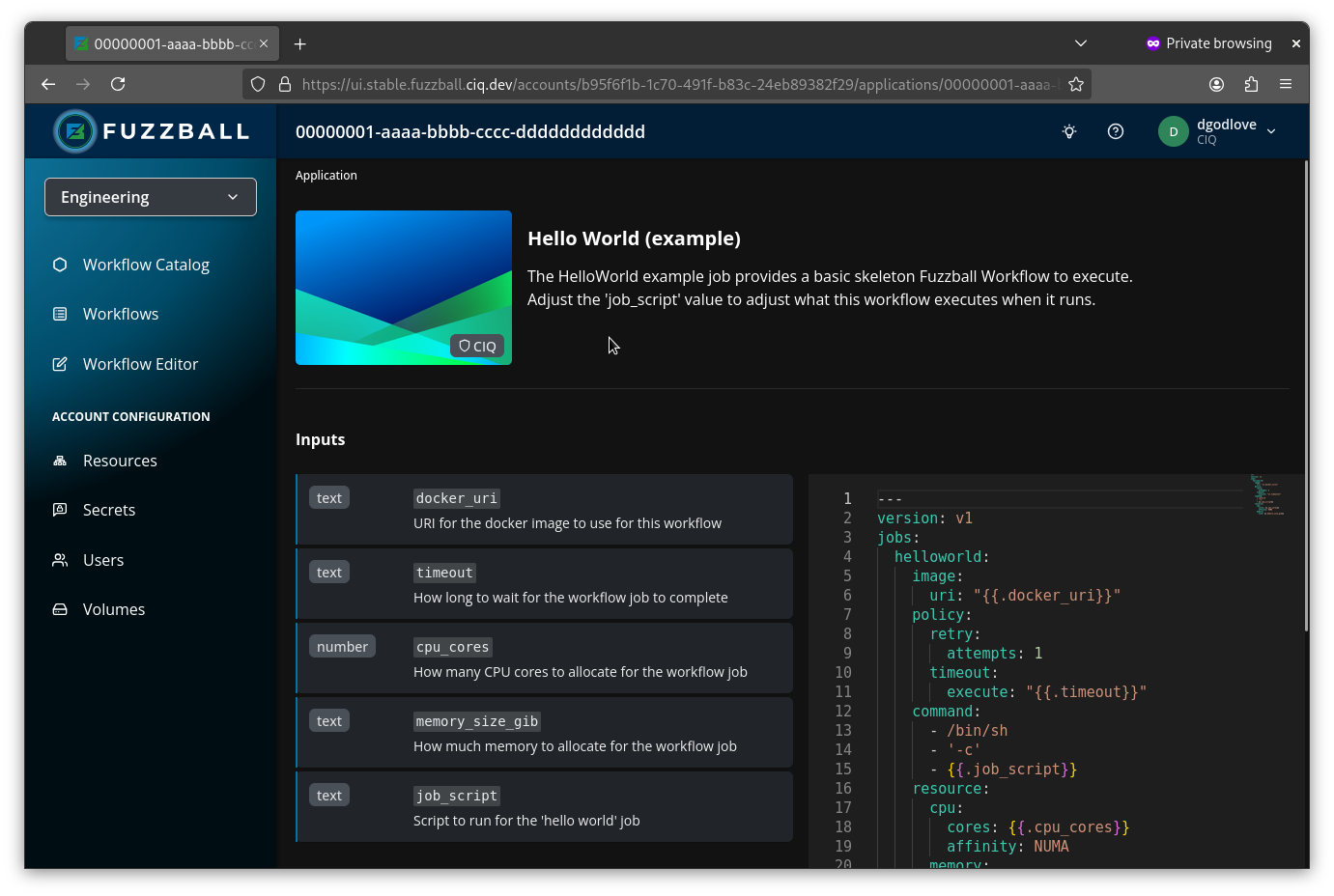
On the resulting “Create Template” page, you can manually edit the template YAML file, rename inputs, change their type, description, and default values, create new inputs, and delete existing ones.

For more information about editing templates in the Workflow Catalog, see the section on creating new templates.
To copy an existing template, use the fuzzball workflow catalog copy command. You can specify the
template by its name or by its ID. Template IDs are specific to a cluster and to the catalog
repository the template came from, so naming the template is the portable form – as long as the
name identifies one template on the cluster, otherwise the command reports it as ambiguous and you
pass the ID instead:
$ fuzzball workflow catalog copy 'Hello, World'To confirm it was successfully copied and to see it listed with other templates, use the fuzzball workflow catalog list command:
$ fuzzball workflow catalog listSupport for editing templates from the Workflow Catalog using the CLI is currently in development and coming soon.