
Adding Secrets
Credentials can be added as group or user scoped secrets. These credentials can be used to access resources such as containers in a private OCI registry or input files stored in an S3 bucket.
SIF image decryption secrets can currently only be created using the CLI.
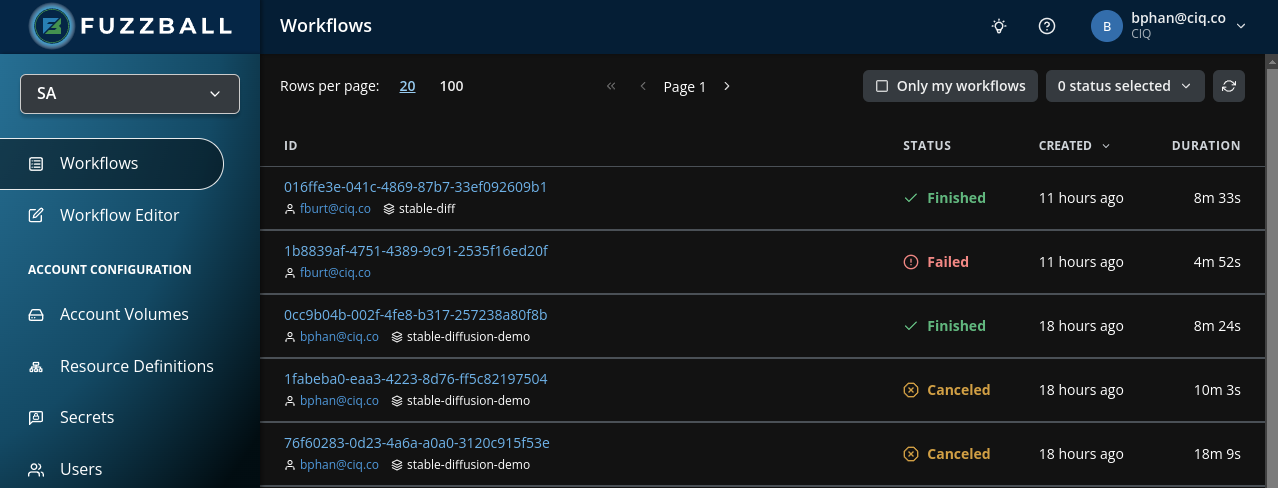
Once you have logged in and selected one of your groups, you can create a secret by first navigating to the secrets page using the navigation bar on the left side of the page. The image below shows a user logged in with a group selected.
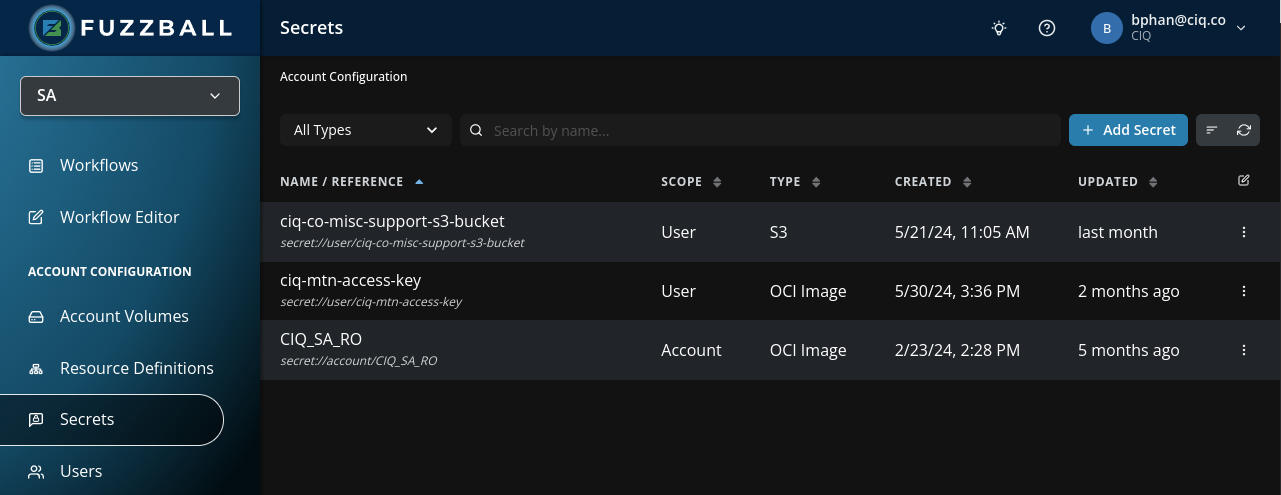
Navigating to the secrets page shows a list of group and user scoped secrets you have access to. In the example below no secrets have been created yet. Let’s add one now by clicking the “Create Secret” button in the top right.
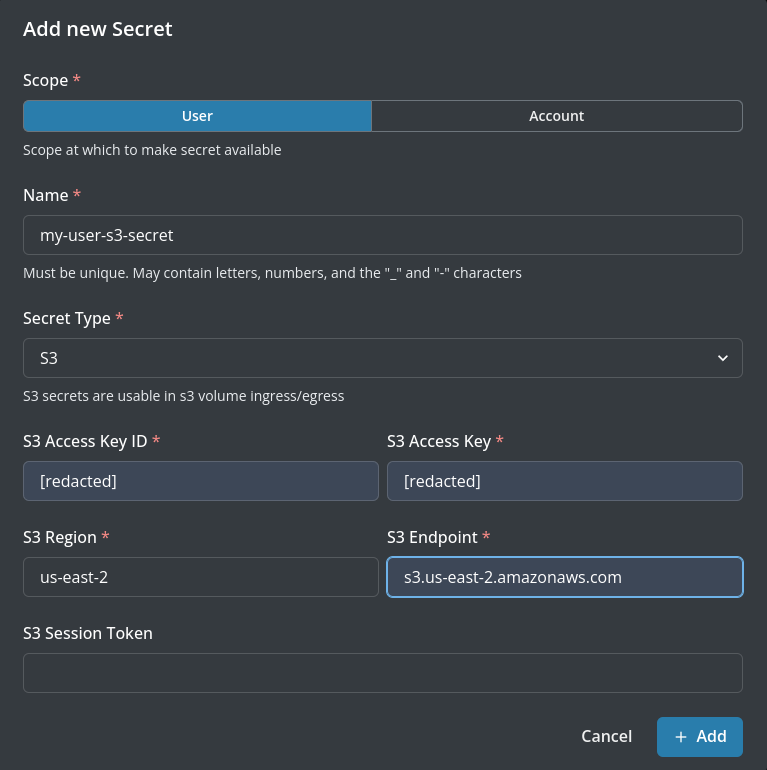
Fuzzball enables you to create secrets at the user or group scope. When you are working in a group
account, a Scope selector appears at the top of the dialog so you can choose between User and
Group (account owners) or Organization (organization owners). When you are working in your
personal account there is nothing to choose – every secret is user scoped – so the selector is
omitted, as in the image below. Next, you can give your secret a name and select the type of secret
you’d like to create. In the example
below, the secret being created is named my-user-s3-secret and its type is set to S3 using the
drop down. Once your secret type is selected, the required fields for the secret should render for
you to fill in. In the example below, we are filling in the fields access key ID, access key, region,
and endpoint. An S3 session token is a temporary credential that is returned along with an access key
ID and a secret access key when an Amazon Web Services (AWS) account or IAM user requests temporary
security credentials from AWS Security Token Service (AWS STS) and is an optional field. Once all
the required fields are filled in, you can create your secret by clicking “Create Secret” at the
bottom right of the menu.
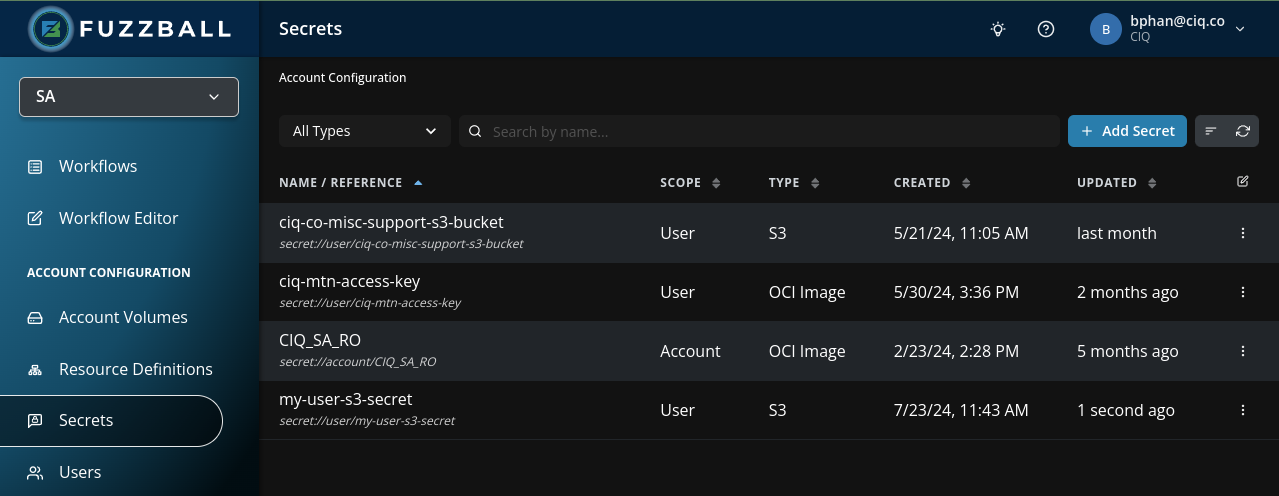
In this example, after the S3 secret my-user-s3-secret is created, it is appended to the list of
secrets you have access to.
Once you have created an appropriate secret YAML file, adding the secret to the cluster can be done like so:
$ cat > s3-secret.yaml <<__EOF__
type: s3
secret:
  access-key-id: "[redacted]"
  access-key: "[redacted]"
  region: us-east-2
  endpoint: s3.us-east-2.amazonaws.com
  session-token:
__EOF__

$ fuzzball secret create -f s3-secret.yaml -s user my-user-s3-secret
Created secret: 304945fc-e915-4359-8adc-1f59d3c1de92

$ fuzzball secret list
ID                                   | TYPE | REFERENCE
304945fc-e915-4359-8adc-1f59d3c1de92   s3     secret://user/my-user-s3-secret
If you want to add a secret with group scope instead of user scope (and you have the permissions
to do so) simply change the -s user to -s group like so (the legacy value -s account is
also accepted and behaves identically):
$ fuzzball secret create -f s3-secret.yaml -s group my-group-s3-secret
Created secret: f0bea820-c2a2-4a2f-b738-649f8a494150

$ fuzzball secret list
ID                                   | TYPE | REFERENCE
304945fc-e915-4359-8adc-1f59d3c1de92   s3     secret://user/my-user-s3-secret
f0bea820-c2a2-4a2f-b738-649f8a494150   s3     secret://group/my-group-s3-secret
If you want to add a secret with group scope, you must be using the proper group. If you have currently selected your individual group your secret will simply be added to your personal user scope even if you select-s groupwhen adding the secret. You can check which group you are using and change groups with thefuzzball group listandfuzzball group selectcommands respectively.