
Starting and Stopping Your New Workflow
Now that you have a Fuzzfile loaded into the web UI or saved on your file system for use with the CLI, you are ready to run your first workflow.
If you followed the steps to use the printer example from the Workflow Catalog in the previous section, you have already submitted your workflow and it should be running.
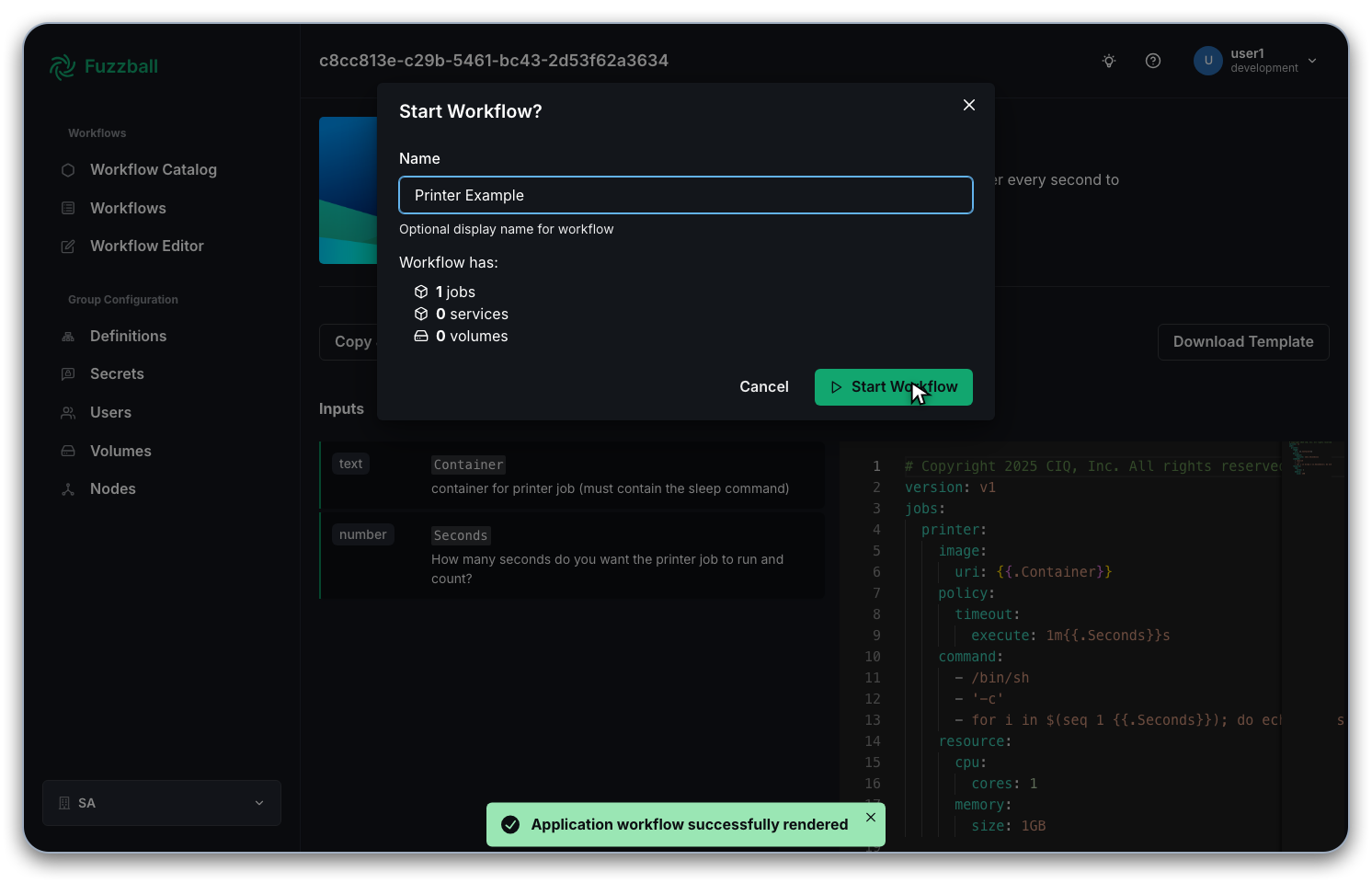
If you opened the printer example in the Workflow Editor (or have another Fuzzfile loaded there), press the triangular “Start” button in the editor toolbar.
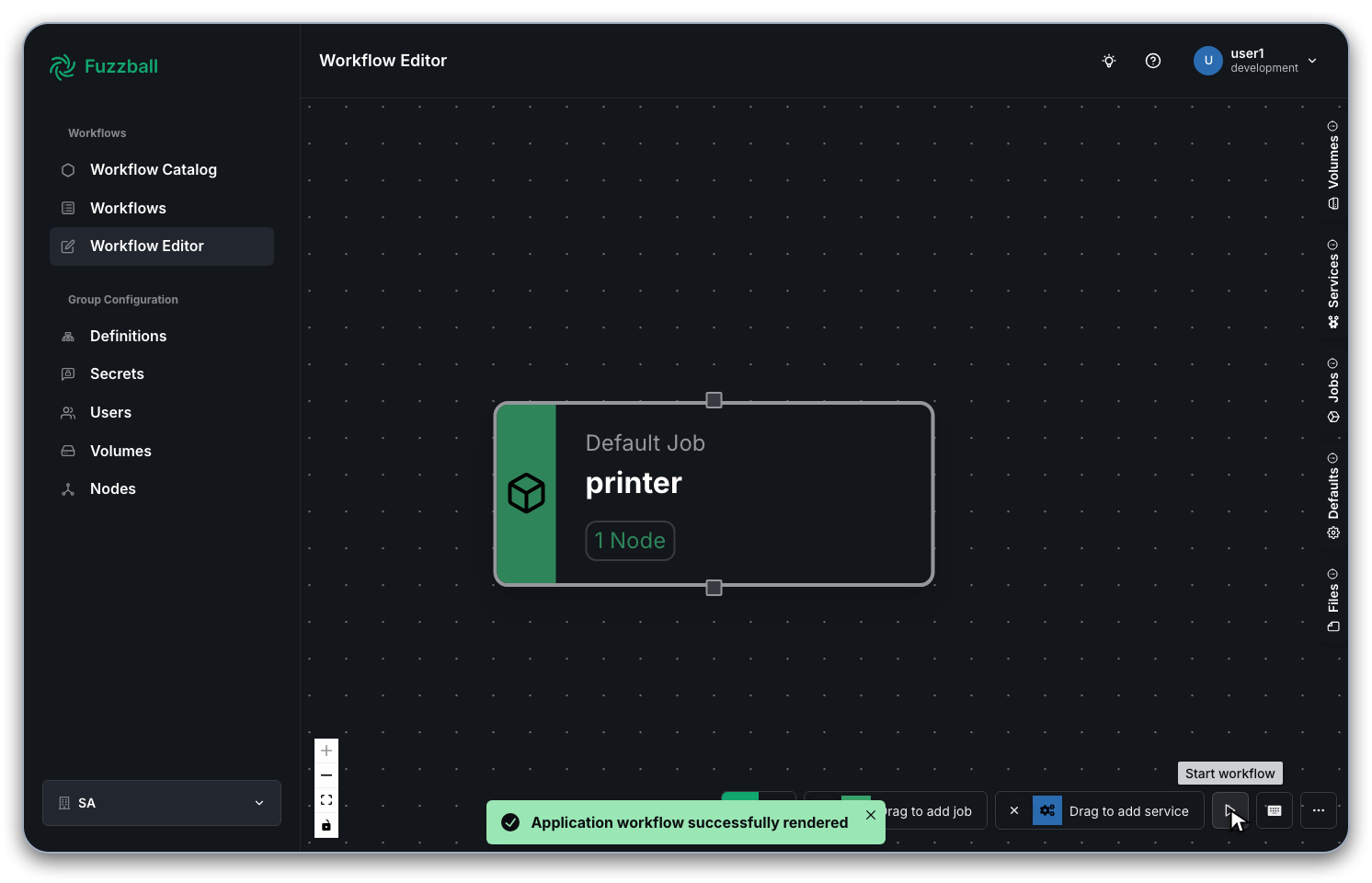
You will be prompted to provide an optional descriptive name for your workflow.
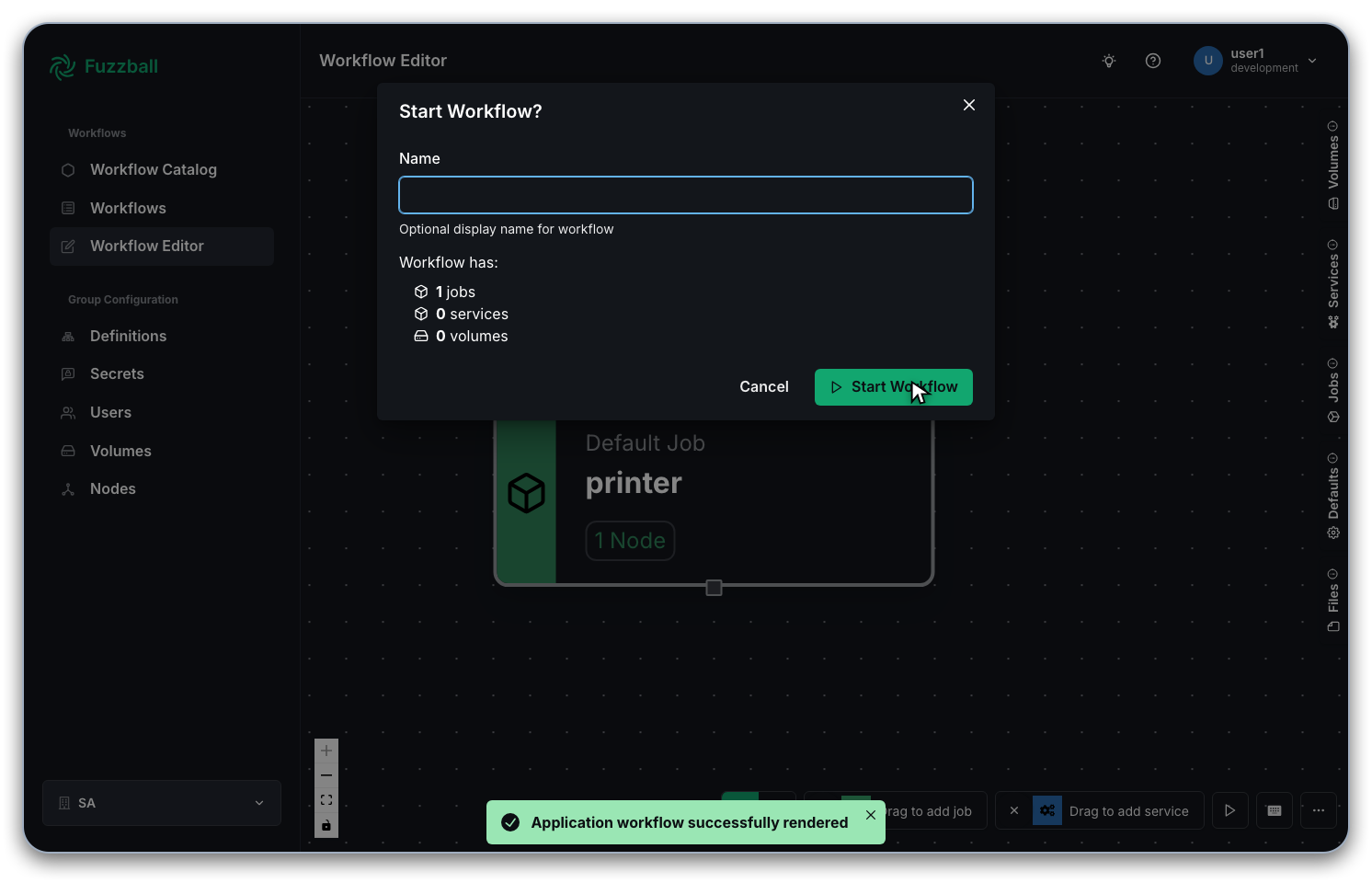
Click “Start” in the lower right corner of the dialog box to submit your workflow. Fuzzball then takes you to the workflow status page.
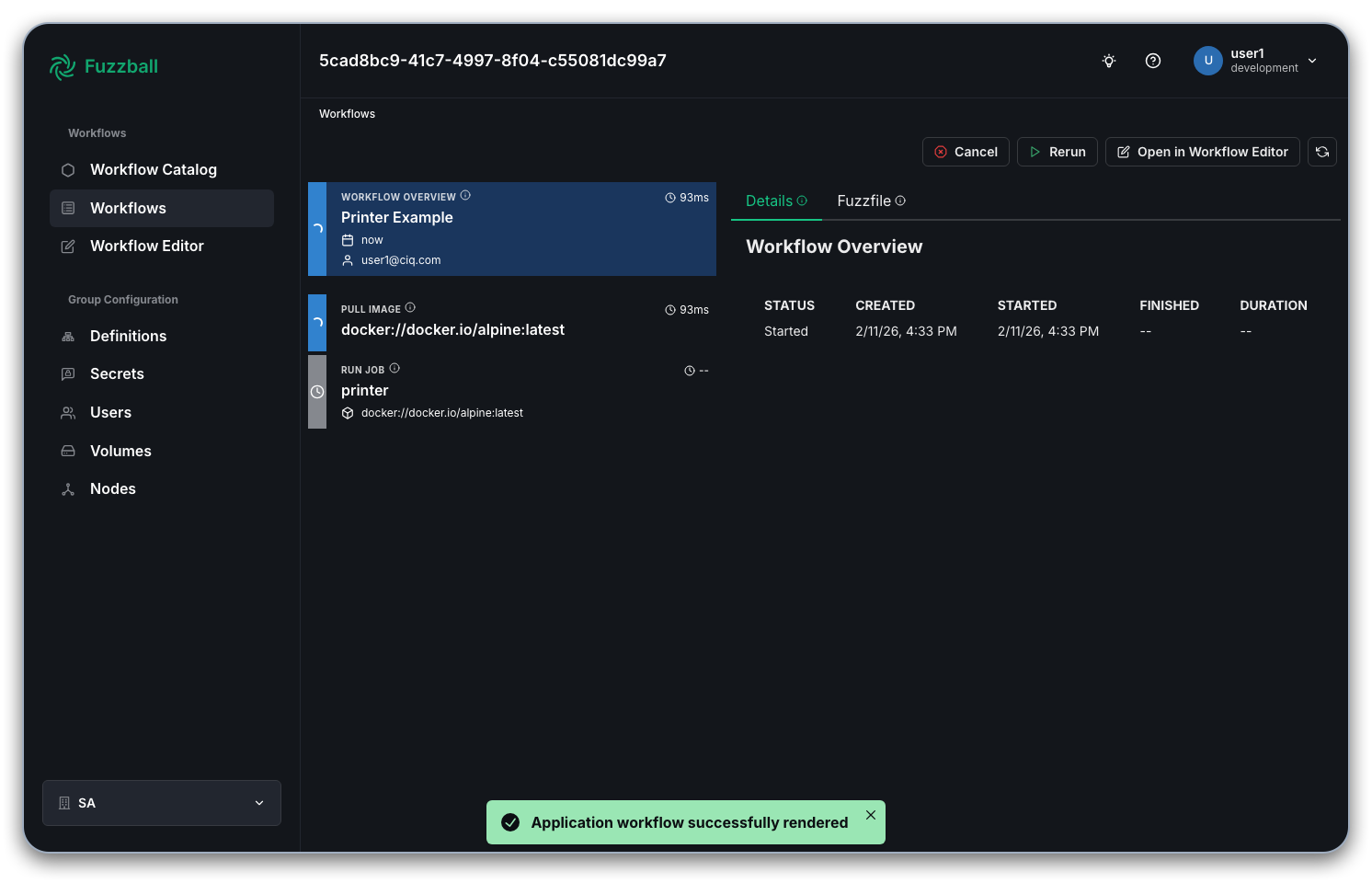
If you leave the workflow running, you can use it to complete the following sections on Interacting with workflows. If the workflow times out, or you end it by clicking “Cancel”, click “Rerun” on the same page to start a new workflow from the same Fuzzfile.
A canceled workflow is still listed, so you can look at what it did. To remove it and its records permanently, see Deleting and Retaining Workflows.
Fuzzball normalizes your Fuzzfile when you submit it. It fills in defaults, substitutes workflow variables, and may reorder sections, so the definition Fuzzball shows afterwards is not byte-for-byte what you wrote. Your original Fuzzfile is kept: on the workflow status page, select the Fuzzfile tab in the Workflow Details pane to view the YAML you submitted (read-only). Use Open in Editor on the same page to edit that definition in the Workflow Editor.
Assuming you created the ~/fb-work directory and the file printer.fz in it, as described in the
previous section on building workflows, the command that you need to
submit the workflow follows.
$ fuzzball workflow start printer.fz
Workflow "3cc718d1-e35c-4455-b4f4-ca3412727277" started.
As shown above, Fuzzball assigns each workflow a Universally Unique Identifier (UUID) upon submission. This UUID serves as the primary reference point when you need to control, monitor, or interact with your workflow. For instance, to stop the workflow you just started, run:
$ fuzzball workflow stop 3cc718d1-e35c-4455-b4f4-ca3412727277
Workflow stopped with name 3cc718d1-e35c-4455-b4f4-ca3412727277
Stopping a workflow from the CLI has the same effect as clicking “Cancel” in the web UI.
A stopped workflow is still listed, so you can look at what it did. To remove it and its records permanently, see Deleting and Retaining Workflows.
The remainder of the quick start guide will use the syntax <workflow uuid> whenever you need to
substitute your specific workflow’s identifier in a command.
Fuzzball normalizes your Fuzzfile when you submit it. It fills in defaults, substitutes workflow variables, and may reorder sections, so the definition returned byfuzzball workflow getis not byte-for-byte what you wrote. Your original is kept: runfuzzball workflow get <workflow uuid> --rawto retrieve it.