
Logging In and Selecting Your Group
After deciding whether to use the web UI or the CLI to interact with Fuzzball and confirming that you meet all prerequisites, you can log in. Follow the instructions in either the web UI or CLI tab below, depending on your preferred method.
When you first visit the Fuzzball URL (provided by your administrator), you will see a sign-in page looking like this:
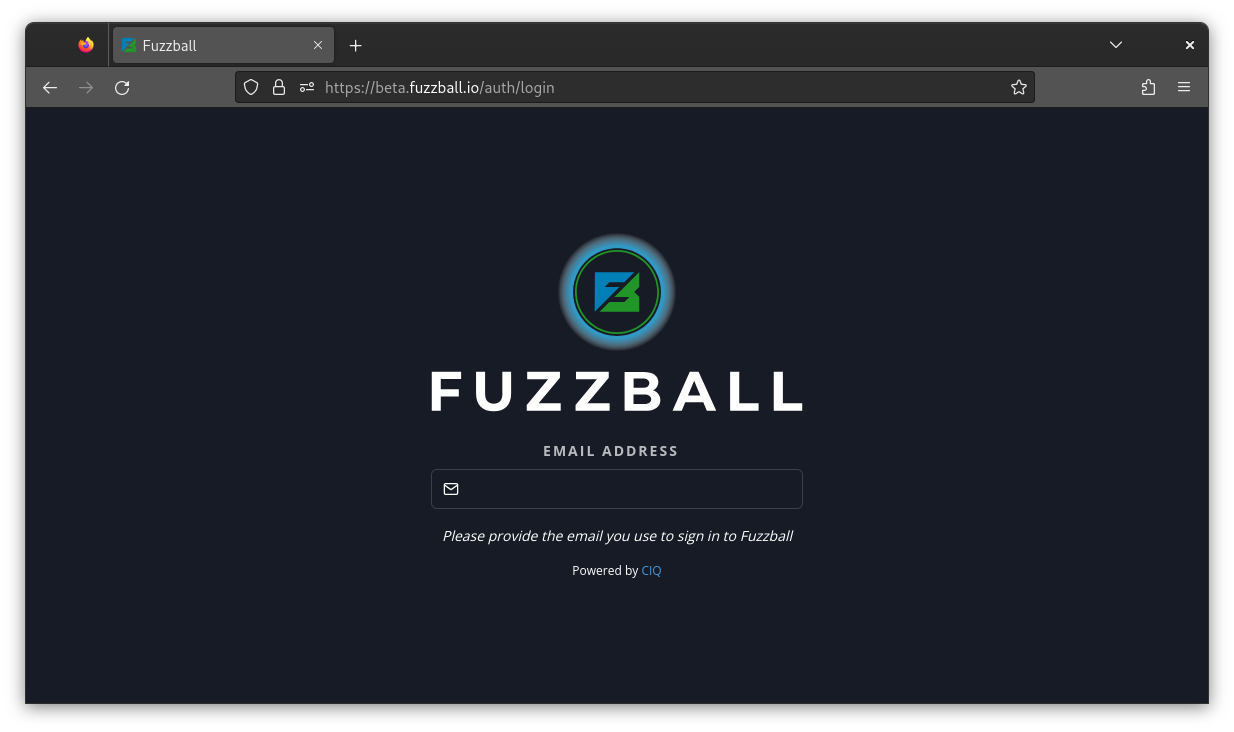
The sign-in page opens on identity-provider sign-in (SSO or LDAP). Enter your email address, and Fuzzball looks up the organizations that address can sign in to. A “Sign in to” button appears for each one, labeled with the organization’s name; select yours to continue to your provider’s sign-in page. If the address belongs to more than one organization and you have signed in to one of them before, Fuzzball remembers it and lists it first, marked “Recent”.
The lookup starts a moment after you stop typing, and only once what you have typed is a complete email address; a “Finding your organizations…” message and spinner appear below the email field while the lookup runs. If no organization buttons appear, then either the address is still incomplete or the lookup has not finished. If the lookup finds nothing, Fuzzball reports “No organization found for this email.” and offers a “Sign in with a local account” button instead.
If your cluster uses local Fuzzball accounts instead of, or alongside, an identity provider, select the smaller italicized “sign in with a local account” link below the sign-in card. The link stays available as long as organization sign-in is still an option; it is hidden once the lookup finds no organization for the entered address, since the alert described above then offers its own “Sign in with a local account” button. The local form asks for your email address and password, and a “sign in through your organization” link below the card returns you to identity-provider sign-in.
An account managed by an identity provider has no password stored in Fuzzball itself, so local sign-in will not work for it. Where the address is also registered with a provider, the failure still reads “Invalid email or password.” and a second message appears beneath it: “This address is also registered with an identity provider. If it has no local password, sign in through your provider instead.” That second message carries a “Sign in via org” button that returns you to the provider form.
After signing in, you will be redirected to the user dashboard:
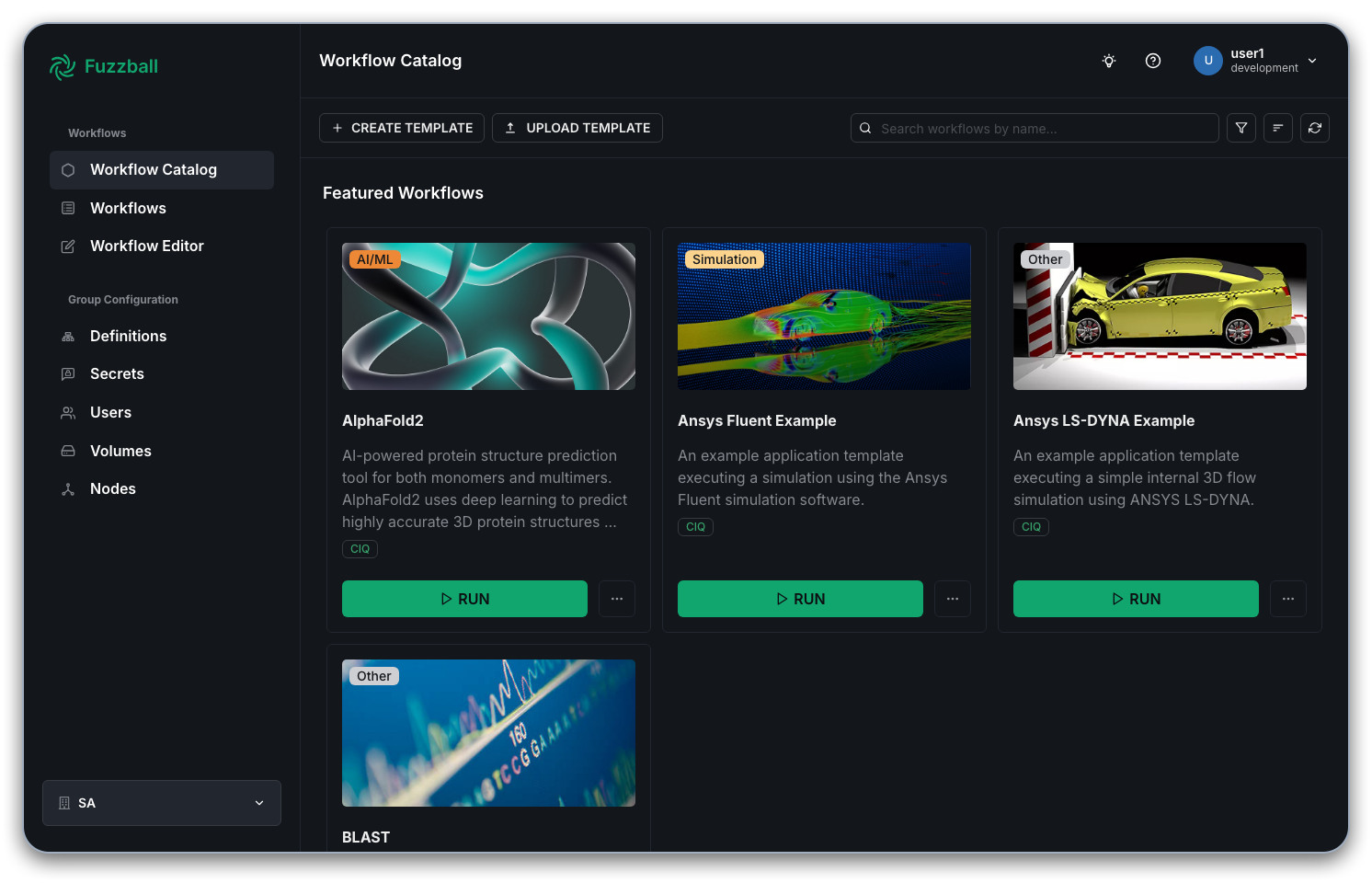
Fuzzball activates your default group. You can change the group for the current session using the dropdown menu in the upper left corner.
If a shared group managed by your administrator is available, select it to complete this quick start guide. Shared groups let you see and collaborate on workflows submitted by other group members, which your personal group does not.
After selecting your shared group, you may see workflows submitted by other group members. Sharing workflows is one of the benefits of using a shared group.
The Fuzzball CLI needs to know which context (i.e. Fuzzball installation) you want to interact with. The context is automatically determined by the web UI since you point your browser to a URL. But the CLI needs you to create the appropriate context before you log in.
The command below contains a series of URLs and an organization ID that you can obtain from your administrator or the web UI.
$ fuzzball context create stable api.stable.fuzzball.ciq.dev \
  https://auth.stable.fuzzball.ciq.dev/auth/realms/db17f530-ef85-429c-bcca-f6faa5ab86ce \
  fuzzball-cli
Configuration for "stable" created.
Configuration for "stable" now in use.

$ fuzzball context list
ACTIVE | NAME   | ACCOUNT
   *   | stable |
The first command creates the context (in this case named stable) so that you can access the
appropriate Fuzzball cluster. The second command
lists your available contexts and highlights (with a *) the currently used context. In this case,
because only one context exists, it is automatically the one in use.
If you have created more than one context and want to select the appropriate one, use thefuzzball context use <context name>command.
Now you can log into the context with the following command:
$ fuzzball context login
Logging into current cluster context...
Using a secure browser, open the link to complete login:
https://auth.stable.fuzzball.ciq.dev/auth/realms/db17f530-ef85-429c-bcca-f6faa5ab86ce/device?user_code=DPGB-URVO

Waiting for login completion... done!
The system will open this link in your default browser, guiding you through a secure web-based authentication process.
Alternatively, if you prefer a browser-free approach or are working in an environment without GUI access, you can authenticate directly through the terminal:
$ fuzzball context login --directThis command will prompt you to enter your username and password. For security purposes, your password will not be visible as you type it in the terminal.
When using the--directflag with thelogincommand, Fuzzball automatically checks for environment variables$FUZZBALL_USERand$FUZZBALL_PASSWORD. If these variables are set, Fuzzball will use them as credentials without prompting you for input — useful for automated scripts and CI/CD pipelines.
By default, fuzzball context login activates your personal group. If you belong to one or more
shared groups, switch into one of them: workflows you submit run under the active group, and
shared groups let teammates see and collaborate on each other’s workflows.
You can select the group as part of the login itself with --group/-g. The flag accepts either
the group name or its UUID:
$ fuzzball context login --group SA
Logging into current cluster context...
...
Group "SA" in use
Unless you pass --direct, the browser-based login shown above still runs first; its output is
omitted here for brevity.
Without --group, login re-selects whichever group was last active for this context. The first
time you log in on a newly created context, your personal group is used. You can list the groups
you can access at any time and switch between them after the fact:
$ fuzzball group list
SELECTED | ID                                   | NAME             | PRIORITY | PREEMPTS
         | 4ba9824b-0c12-43cf-9e9a-833881004a0d | SA               | 0        |
   *     | 9f1c2d3e-4a5b-6c7d-8e9f-0a1b2c3d4e5f | user@example.com | 0        |
The * indicates the active group. Switching to a shared group is a single command (name or UUID
both work):
$ fuzzball group use SA
Group "SA" in use

$ fuzzball group list
SELECTED | ID                                   | NAME             | PRIORITY | PREEMPTS
   *     | 4ba9824b-0c12-43cf-9e9a-833881004a0d | SA               | 0        |
         | 9f1c2d3e-4a5b-6c7d-8e9f-0a1b2c3d4e5f | user@example.com | 0        |