
Retrieving Job Logs
You can retrieve logs from jobs within a workflow. These can be retrieved after the job has completed, or streamed in real time as the job runs.
You can retrieve logs from either the web UI or the CLI.
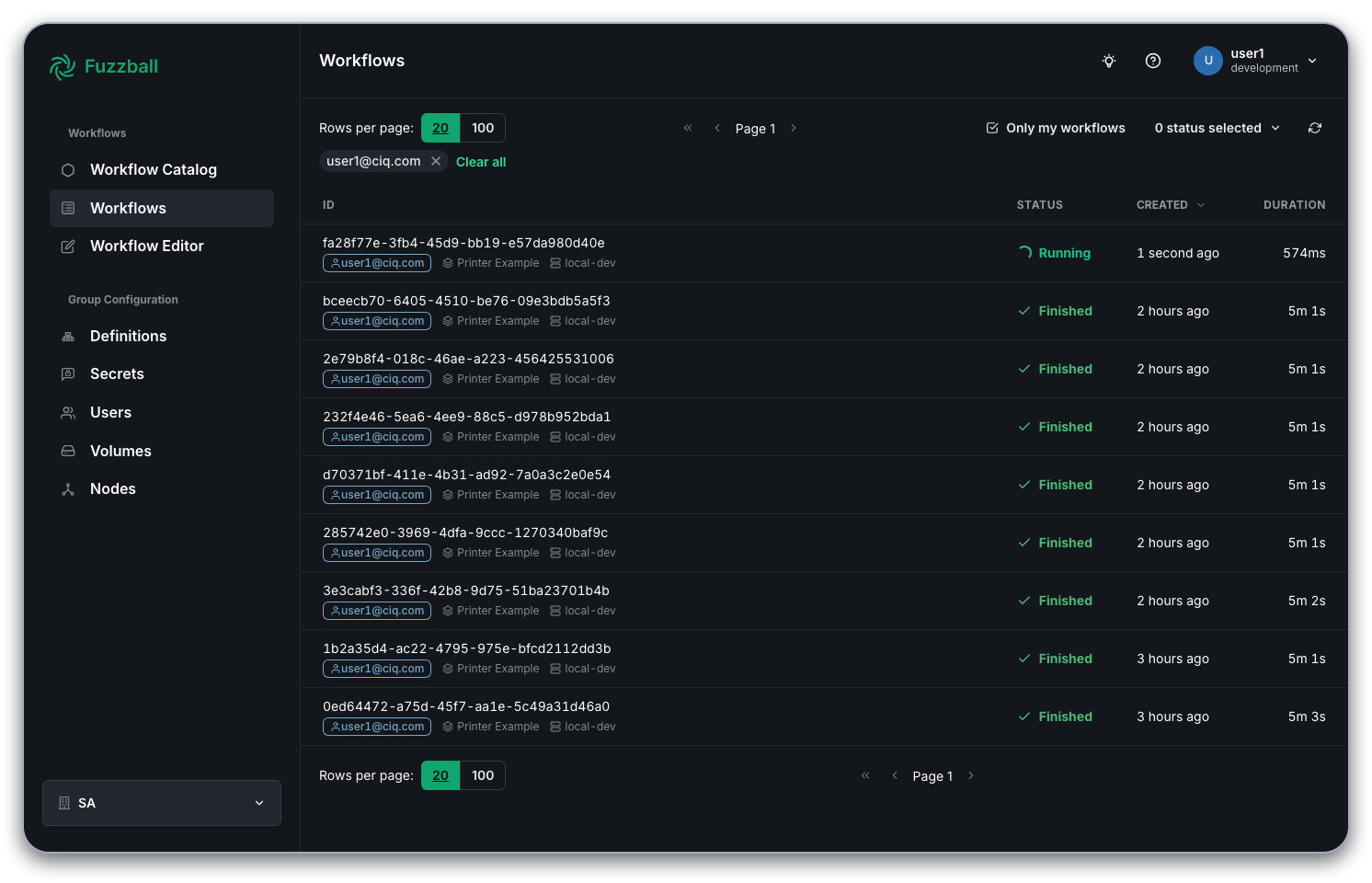
To retrieve logs from a job within a workflow, select the workflow from the “Workflows” page, then select the job you are interested in.
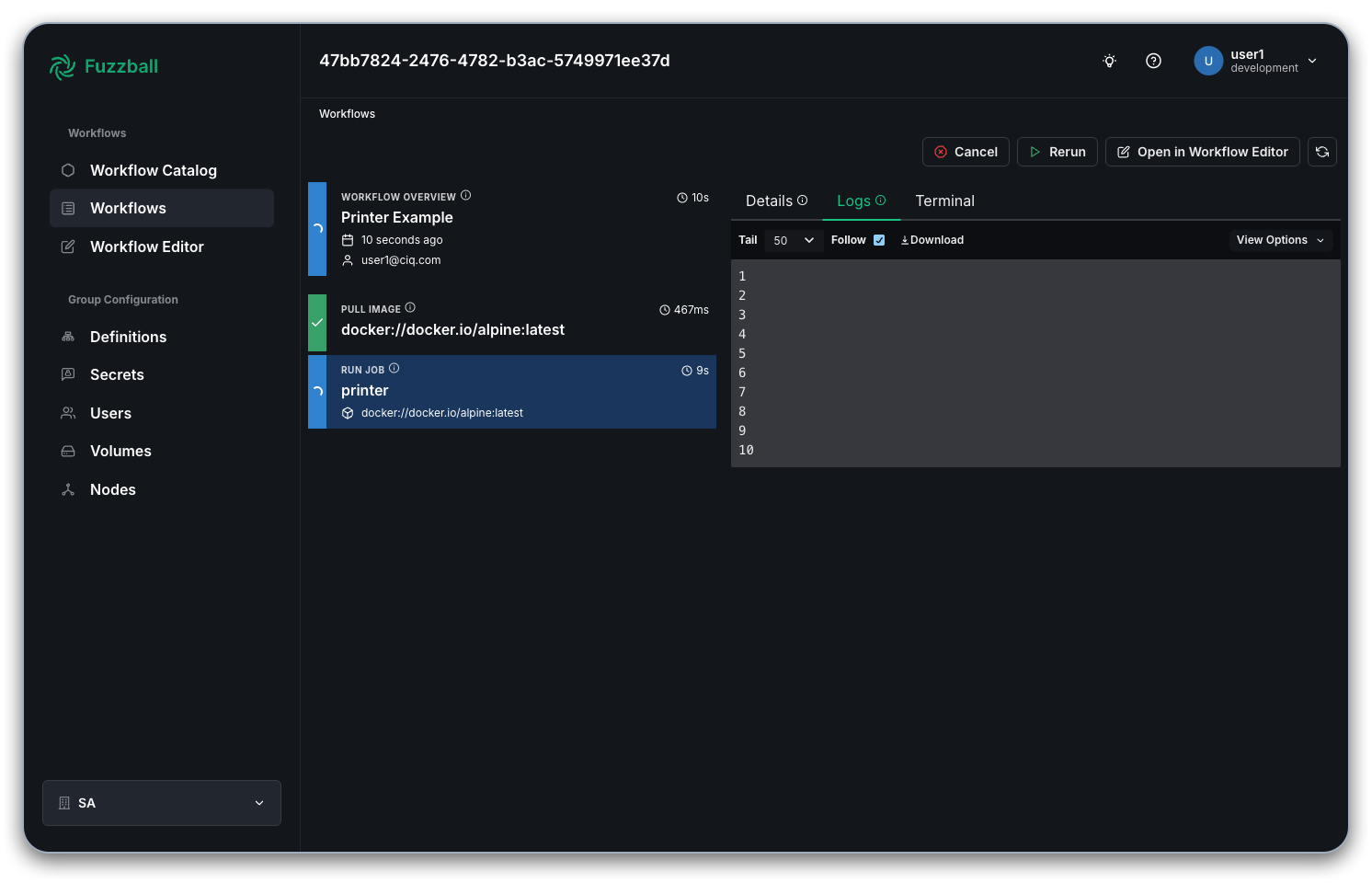
Selecting a job opens a panel with a “Logs” tab, alongside tabs for the job’s details, its events, and a terminal. Choose “Logs” to view the job’s output.
To obtain logs from a job within a workflow using the CLI, you need both the workflow UUID and the
job name. Suppose you want the last 10 lines of logs from the workflow you ran most recently, but
you do not know its UUID and cannot remember the name of the job. fuzzball workflow list sorts by
priority first, so pass --order-by -created to put the most recently created workflow in the first
row:
$ fuzzball workflow list --order-by -created
ID                                   | CLUSTER         | EMAIL            | STATUS   | NAME
d2a494f5-52ef-4462-a5ac-e4dc8331f6b6 | example-cluster | user@example.com | Finished | MyDescriptiveWorkflowName
3cc718d1-e35c-4455-b4f4-ca3412727277 | example-cluster | user@example.com | Finished | printer.fz
Use fuzzball workflow describe with that UUID to find the job names in the workflow:
$ fuzzball workflow describe d2a494f5-52ef-4462-a5ac-e4dc8331f6b6
Name:      MyDescriptiveWorkflowName
Email:     user@example.com
UserId:    9f1c2d3e-4a5b-6c7d-8e9f-0a1b2c3d4e5f
Status:    STAGE_STATUS_FINISHED
Cluster:   example-cluster
Parent:
Children:  0
Created:   2024-05-14 04:00:58PM
Started:   2024-05-14 04:00:59PM
Finished:  2024-05-14 04:06:34PM
Error:


KIND     | STATUS   | NAME                                 | DURATION | PERSISTENT VOLUME | VOLUME REFERENCE | DRIVER ID
Workflow | Finished | d2a494f5-52ef-4462-a5ac-e4dc8331f6b6 | 5m36s    |                   |                  |
Image    | Finished | docker://docker.io/alpine:latest     | 18s      |                   |                  |
Job      | Finished | printer                              | 5m2s     |                   |                  |
Now request the logs, passing the workflow UUID and the job name. The -n option limits the output
to the last N lines:
$ fuzzball workflow log d2a494f5-52ef-4462-a5ac-e4dc8331f6b6 printer -n 10
291
292
293
294
295
296
297
298
299
300
If the job is still running, add -f to follow the logs, streaming them to your terminal as they
are produced.