
Adding Users to Organizations
New users are created by adding them to an organization using either the web UI or the CLI. Follow the instructions for your preferred method below.
Before adding users via the web UI, ensure you have:
- Organization owner permissions
- The new user’s email address
Log into your Fuzzball UI as an organization owner
Click the account switcher in the upper left of the sidebar and select Manage Organization

Navigate to the Users section in the left toolbar
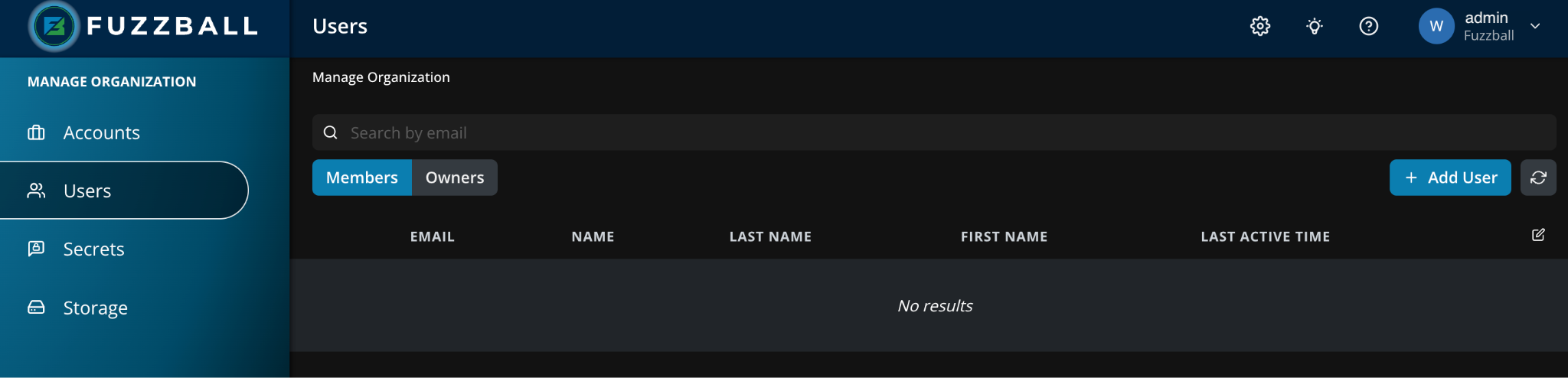
Click on Add User, provide the new user’s email address, and select the Member role for regular users (or Owner for organization owners). By default Fuzzball emails the user an invitation so they can set their own password. Clear that checkbox to either auto-generate a secure password or type one in yourself. In both of those cases the user is required to change their password on their next login. If your organization uses an upstream identity provider, the account is connected to that identity instead.
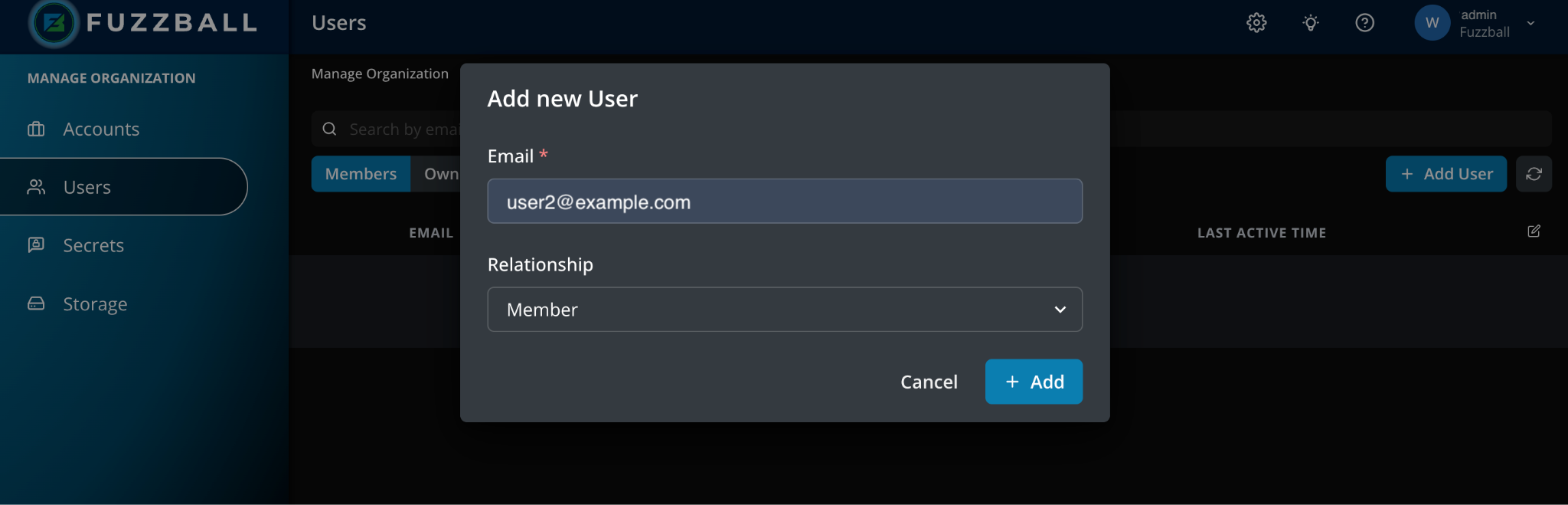
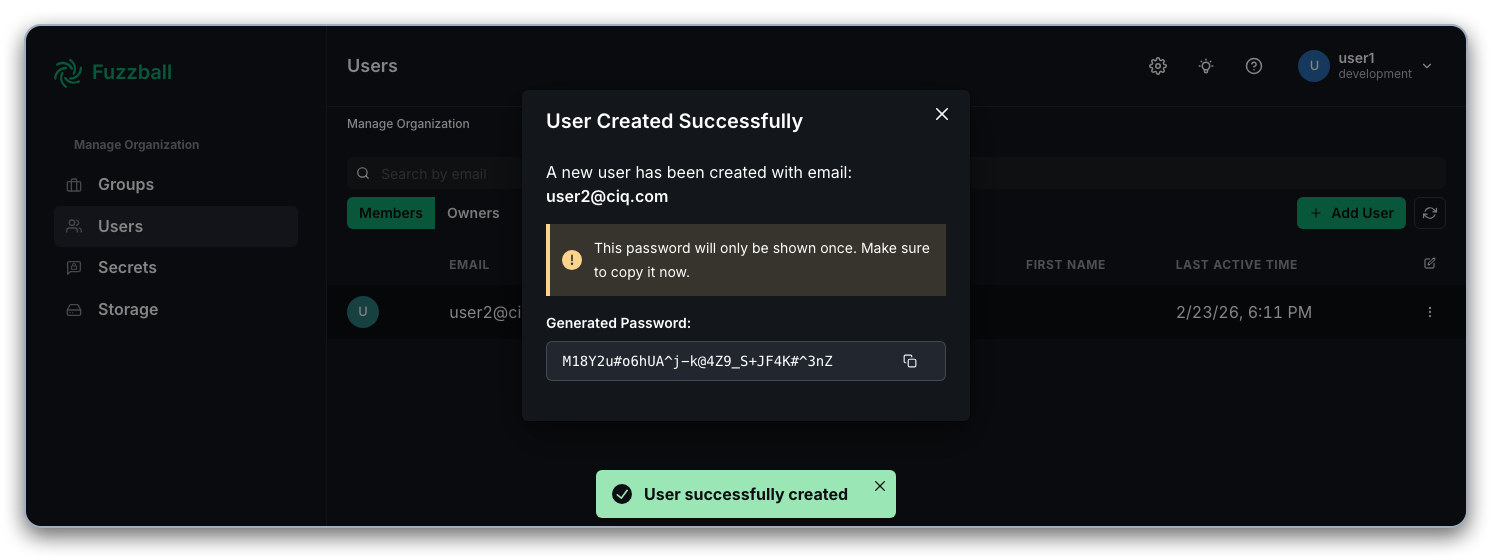
Click Add User to complete adding the new user to the organization. If you had Fuzzball auto-generate a temporary password, it will be shown in a one-time dialog.
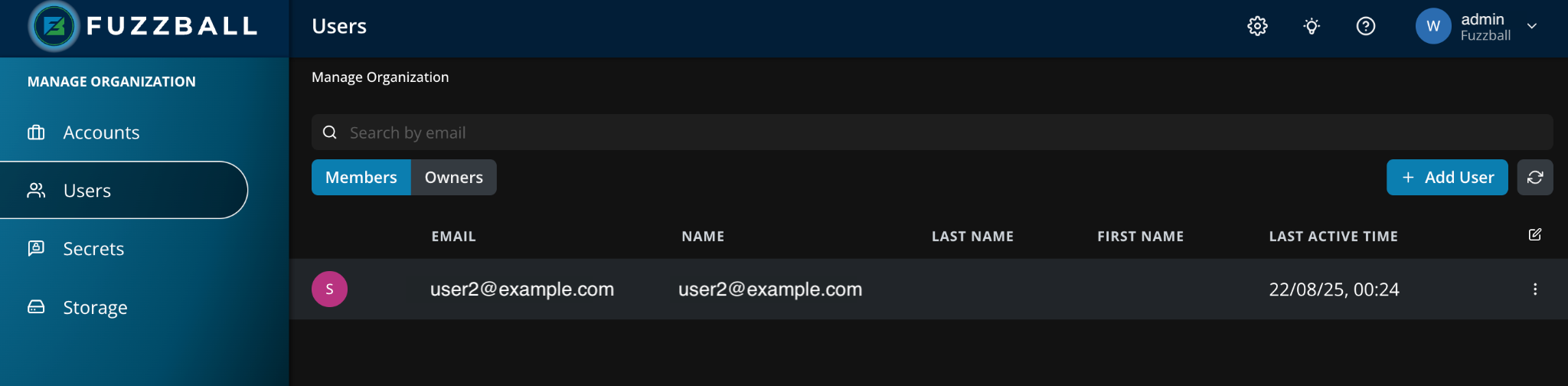
Once the addition is complete, the user appears in the Users table with the role you chose in step 4.
- Fuzzball CLI installed
- Active CLI context for a Fuzzball user configured as an owner for the Fuzzball organization to be managed.
New users can be added as organization members using the Fuzzball
organization member add subcommand. The example below adds user
user2@ciq.com as an organization member. By default a temporary password
for the new user will be created and shown in the output:
$ fuzzball organization member add user2@ciq.com
Member added:
  ID:    78be52a7-3702-48d4-ad56-ecf8ac76a727
  Email: user2@ciq.com

⚠️  GENERATED PASSWORD (save this - it won't be shown again):
  riJ@Kb#2#KpV8g*1S7_Q_4^MLp8I^N52
Alternatively, you can provide an explicit password:
$ read -rs TEMP_PASSWORD  ## read a password into a variable without echoing to screen
...type password and hit enter...

$ fuzzball organization member add --password "$TEMP_PASSWORD" user2@ciq.com
Member added:
  ID:    78be52a7-3702-48d4-ad56-ecf8ac76a727
  Email: user2@ciq.com
Alternatively, prompt interactively for a password:
$ fuzzball organization member add --password-prompt user2@ciq.com
Password: ········
Confirm:  ········
Member added:
  ID:    78be52a7-3702-48d4-ad56-ecf8ac76a727
Email: user2@ciq.comThe--passwordand--password-promptflags are mutually exclusive. If neither is provided, Fuzzball auto-generates a secure password.
New users can be added as organization owners by passing --owner to
organization member add. The example below adds user user3@ciq.com
as an organization owner. By default a temporary password is
auto-generated:
$ fuzzball organization member add --owner user3@ciq.com
Owner added:
  ID:    41d8cf04-c33a-4015-9fe0-90b9682035bc
  Email: user3@ciq.com

⚠️  GENERATED PASSWORD (save this - it won't be shown again):
  IUr7h-2G@uv#*7^A9EjV0e+24Dif#-e3
Alternatively, you can provide an explicit password:
$ fuzzball organization member add --owner --password 'MySecurePass123!' user3@ciq.com
Owner added:
  ID:    41d8cf04-c33a-4015-9fe0-90b9682035bc
  Email: user3@ciq.com
Alternatively, prompt interactively:
$ fuzzball organization member add --owner --password-prompt user3@ciq.com
Password: ········
Confirm:  ········
Owner added:
  ID:    41d8cf04-c33a-4015-9fe0-90b9682035bc
Email: user3@ciq.comThe--passwordand--password-promptflags are mutually exclusive. If neither is provided, Fuzzball auto-generates a secure password.
After adding a new user to your organization, share their password with them. When users log in
for the first time they will either connect their Fuzzball account to their account in the central
identity management system or log in with the provided password. If you required a password change
(via --require-update-password in the CLI or the equivalent web UI option), they will be
prompted to set a new password on first login. For more information, see the
Managing Passwords guide.
After creating users and adding them to your organization as described above, you add them to specific groups to allow them access to group level resources. The group management guide describes how to manage group membership for your Fuzzball users.
For more information on organization owner and member permissions, please refer to the roles and permissions page.