
Installing the CLI
To interact with Fuzzball through the CLI, you must first install the CLI.
Select one of the tabs below to see instructions specific for your operating system.
The easiest way to install the Fuzzball CLI on Rocky or another enterprise Linux distribution is to install the pre-compiled binary via an RPM file hosted on Depot.
You must obtain a username and login token from the CIQ sales/support team to log into Depot and install tools like the Fuzzball CLI.
The instructions for installing the depot cli tool can be found on the CIQ Depot
page. They are reproduced here for convenience.
$ DEPOT_USER="" # populate with your username for CIQ Depot

$ ACCESS_KEY="" # populate with the Depot key obtained from the CIQ sales/support team
$ sudo dnf install -y https://depot.ciq.com/public/files/depot-client/depot/depot.x86_64.rpm
$ sudo depot register -u ${DEPOT_USER} -t ${ACCESS_KEY}
$ sudo depot dnfNow that you have the depot CLI installed and dnf configured, you can install the Fuzzball CLI.
$ sudo dnf -y install fuzzball-cliYou can now use the Fuzzball CLI. Remember that the --help flag is available to guide you in your
Fuzzball usage.
$ fuzzball --help
The fuzzball command allows users to interface with a fuzzball cluster(s).

Usage:
  fuzzball [command]

Available Commands:
  admin             Manage fuzzball cluster
  cloud             Deploy Fuzzball to cloud providers
  cluster           View registered fuzzball clusters
  completion        Generate the autocompletion script for the specified shell
  context           Manage fuzzball contexts
  definition        View fuzzball compute resource definitions
  group             Manage groups
  help              Help about any command
  mcp               Manage the Model Context Protocol server for LLM agents
  node              View fuzzball's compute nodes
  organization      Manage your organization
  profile           Manage user profile information
  provisioner       View fuzzball compute provisioner definitions
  secret            Manage fuzzball secrets
  storage           View storage classes
  version           Print the CLI and agent version
  volume            Manage volumes
  workflow          Manage fuzzball workflows

Flags:
      --ca-file string         PEM CA bundle to verify the Fuzzball server's TLS cert ($FUZZBALL_CA_FILE)
  -c, --color string           Set the color output for fuzzball ($FUZZBALL_COLOR) (default "auto")
      --disable-auth           Disables auth ($FUZZBALL_DISABLE_AUTH)
      --disable-tls            Disables tls ($FUZZBALL_DISABLE_TLS)
  -h, --help                   help for fuzzball
      --insecure               Enable insecure connections ($FUZZBALL_INSECURE)
  -o, --output string         Output format: json or yaml ($FUZZBALL_OUTPUT)
      --max-message-size int   Maximum gRPC message size in bytes (default 16777216)

Use "fuzzball [command] --help" for more information about a command.Use--ca-file(orFUZZBALL_CA_FILE) to supply a PEM-encoded CA certificate when connecting to a Fuzzball cluster that uses a private or self-signed certificate authority, without modifying the system trust store. If--insecureis also set, it takes precedence and--ca-fileis ignored with a warning. Reserve--insecurefor development or testing environments only.
To install the Fuzzball CLI on Ubuntu, Debian, or other deb based system, you must install the
pre-compiled binary in a .deb package and use the apt command. You will need to use a browser
to either download the .deb package or to obtain the proper link to download the package with
wget or similar at the command line.
First, open your browser and navigate to CIQ portal. Make sure to select your organization that has access to Fuzzball in the lower part of the navigation pane on the left. (Or contact CIQ for access to this product.)
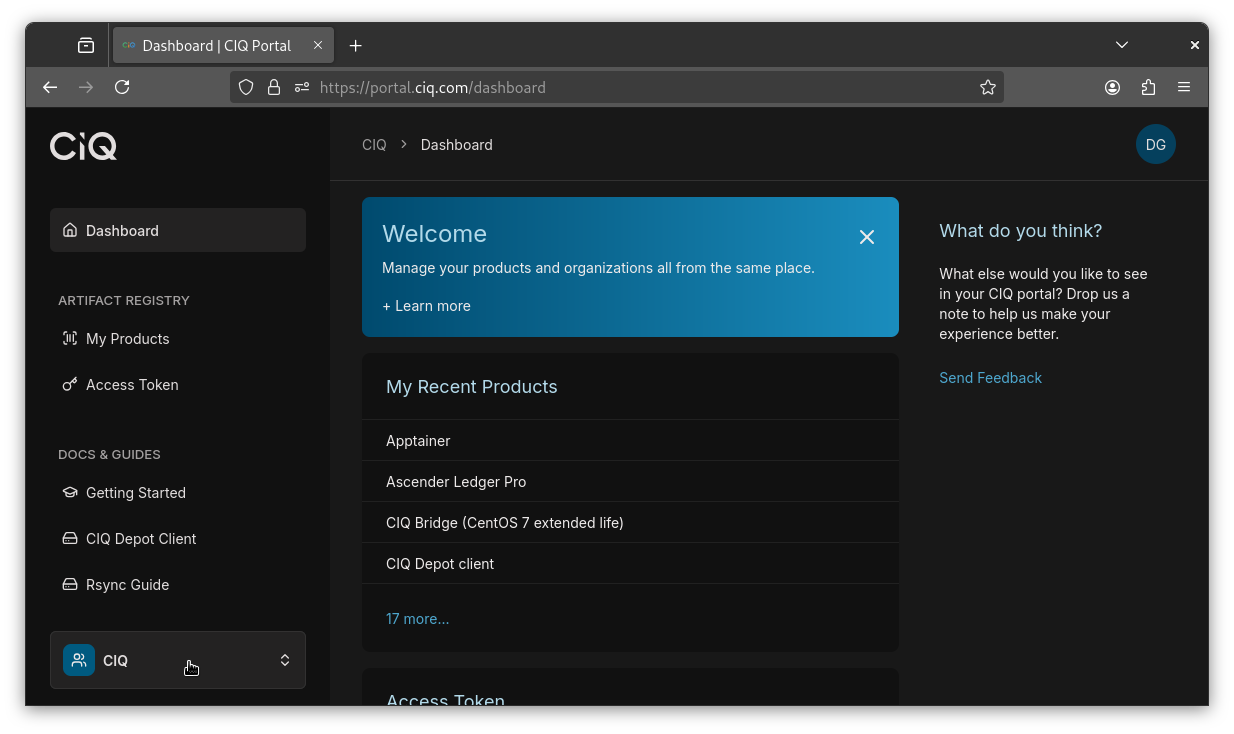
Then go to the Fuzzball CLI repository at depot.ciq.com/my/fuzzball/fuzzball-cli, or reach it from the portal by clicking “My Products” –> “Fuzzball” –> the Fuzzball CLI repository. From there, select version –> architecture –> “deb”.
Currently,.debpackages are stored under a repository heading that mentions RPMs, even though they are not RPMs.

At this point, you can download the deb package by clicking on it. Or you can generate a link
suitable for use at the command line with something like wget by clicking on the small ellipses
menu to the right and selecting “Copy download link.” Then you can install the package using
apt or dkpg.
The following example assumes you copied the download link and are downloading the deb package with wget
and then installing it with apt.
$ wget https://ciq-portal:<token>@depot.ciq.com/my/fuzzball/fuzzball-cli/v4.3.1/amd64/deb/fuzzball-cli_amd64.deb
--2025-05-12 15:51:22--  https://ciq-portal:<token>@depot.ciq.com/my/fuzzball/fuzzball-cli/v4.3.1/amd64/deb/fuzzball-cli_amd64.deb
Resolving depot.ciq.com (depot.ciq.com)... 165.232.132.175
Connecting to depot.ciq.com (depot.ciq.com)|165.232.132.175|:443... connected.
HTTP request sent, awaiting response... 401 Unauthorized
Authentication selected: Basic realm="depot"
Reusing existing connection to depot.ciq.com:443.
HTTP request sent, awaiting response... 200 OK
Length: 41748904 (40M) [application/octet-stream]
Saving to: ‘fuzzball-cli_amd64.deb’

fuzzball-cli_amd64.deb               100%[===================================================================>]  39.81M  25.9MB/s    in 1.5s

2025-05-12 15:51:24 (25.9 MB/s) - ‘fuzzball-cli_amd64.deb’ saved [41748904/41748904]

$ sudo apt install ./fuzzball-cli_amd64.deb
Reading package lists... Done
Building dependency tree... Done
Reading state information... Done
Note, selecting 'fuzzball-cli' instead of './fuzzball-cli_amd64.deb'
The following NEW packages will be installed:
  fuzzball-cli
0 upgraded, 1 newly installed, 0 to remove and 111 not upgraded.
Need to get 0 B/42.1 MB of archives.
After this operation, 0 B of additional disk space will be used.
Get:1 /tmp/fuzzball-cli_amd64.deb fuzzball-cli amd64 2.1.10-58-g9fb80d10d [42.1 MB]
Selecting previously unselected package fuzzball-cli.
(Reading database ... 156044 files and directories currently installed.)
Preparing to unpack /tmp/fuzzball-cli_amd64.deb ...
Unpacking fuzzball-cli (2.1.10-58-g9fb80d10d) ...
Setting up fuzzball-cli (2.1.10-58-g9fb80d10d) ...

$ fuzzball help
The fuzzball command allows users to interface with a fuzzball cluster(s).

Usage:
  fuzzball [command]
[...snip]Installing the Fuzzball CLI with Homebrew is temporarily unavailable. Current versions of Homebrew require every formula to belong to a tap and reject standalone formula files, so the previously documentedbrew install /path/to/fuzzball-cli-<version>-<arch>.rbcommand now fails withError: Homebrew requires formulae to be in a tap. A public CIQ tap is in progress. Until it is available, install the CLI from the binary archive as described below. The Homebrew instructions that will replace this are documented under Installing with Homebrew for reference.
For users on macOS, the Fuzzball CLI is distributed as a compressed archive containing a pre-compiled binary, which is available on the CIQ portal.
Open your browser and navigate to CIQ portal. Make sure to select your organization that has access to Fuzzball in the lower part of the navigation pane on the left. (Or contact CIQ for access to this product.)
Then go to the Fuzzball CLI repository at
depot.ciq.com/my/fuzzball/fuzzball-cli, or reach
it from the portal by clicking “My Products” –> “Fuzzball” –> the Fuzzball CLI repository. From
there, select version –> architecture –> homebrew, and download the file ending with .tar.gz.
Currently, the macOS archives are stored under a repository heading that mentions RPMs, even though they are not RPMs.
Download the archive that matches your hardware. If you are unsure which one you need, run uname -m: arm64 means you want the darwin-arm64 archive (Apple silicon), and x86_64 means you want
the darwin-amd64 archive (Intel).
Extract the fuzzball binary from the archive and install it into a directory on your PATH:
$ tar -xzf fuzzball-cli-<version>-darwin-<arch>.tar.gz

$ sudo install -m 0755 fuzzball /usr/local/bin/fuzzball
Replace <version> and <arch> with the values from the file you downloaded.
The macOS binary is not yet code signed, so Gatekeeper refuses to run it while the quarantine attribute that your browser attached to the download is still present. Remove it:
$ sudo xattr -d com.apple.quarantine /usr/local/bin/fuzzballIf the command reports that the attribute does not exist, the download was never quarantined and no action is needed. Code signing and notarization of the macOS binary are planned, after which this step will no longer be necessary.
You can verify that the Fuzzball CLI has been installed successfully by checking that your shell finds it:
$ which fuzzballYou can also test the CLI directly:
$ fuzzball --helpThis should display the Fuzzball CLI help information, confirming that the installation was successful.
This method is not available yet. CIQ is still preparing the public Homebrew tap, and the commands below will fail until that work is complete. They are documented here so you know what to expect. Use the binary archive instructions above in the meantime.
Once the tap is published, macOS installs will be handled entirely by Homebrew. No credentials, formula downloads, or manual archive extraction will be needed, and Homebrew will select the build matching your hardware automatically on both Apple silicon and Intel Macs.
Add the CIQ tap and install the CLI:
$ brew tap ctrliq/fuzzball

$ brew install fuzzball-cli
You can combine the two steps by installing the fully qualified formula name, which taps automatically:
$ brew install ctrliq/fuzzball/fuzzball-cliHomebrew 6 and later requires you to trust a third-party tap once per machine before it will load formulae from it. If you seeRefusing to load formula ... from untrusted tap, runbrew trust --tap ctrliq/fuzzballand install again.
Each released version is also published as its own formula, so you can install or hold a specific version rather than the latest:
$ brew install ctrliq/fuzzball/fuzzball-cli@<version>A version-specific formula is installed “keg-only”, meaning Homebrew deliberately does not add it to your
PATH– otherwise it would collide with the defaultfuzzball. Run it by its full path:$ "$(brew --prefix)/opt/fuzzball-cli@<version>/bin/fuzzball" versionTo use a pinned version as your default
fuzzballinstead, link it withbrew link --overwrite --force fuzzball-cli@<version>, andbrew unlinkit when you want the latest back.
Upgrade and remove the CLI as you would any other Homebrew package:
$ brew update && brew upgrade fuzzball-cli

$ brew uninstall fuzzball-cli
Verify a default (non-pinned) installation the same way as above, with which fuzzball and
fuzzball --help. A Homebrew install does not need the com.apple.quarantine step, because
Homebrew downloads the archive itself rather than through your browser.
To install the Fuzzball CLI on Windows, you can use the Windows Subsystem for Linux
(WSL). On modern Windows distributions, you can
simply open PowerShell as an administrator and execute the wsl --install command to get started.
Check the WSL installation docs for more
detailed instructions.
If you’d like to use Rocky Linux within WSL, you can follow the instructions detailed in the Rocky documentation.
Once you have WSL set up with the Linux distribution of your choice, you can follow either the RPM or deb installation instructions by clicking on the appropriate tab above.
The CLI verifies the Fuzzball server’s TLS certificate against your system’s trust store. If the server uses a self-signed or private-CA certificate you need to tell the CLI where to find that CA. Here are three options to do so, in order of preference:
Set FUZZBALL_CA_FILE or pass --ca-file to a PEM bundle:
$ export FUZZBALL_CA_FILE=/path/to/rootCA.pem

$ fuzzball context login
Or per-invocation:
$ fuzzball --ca-file /path/to/rootCA.pem context loginThe file replaces the system trust store for the CLI. Concatenate roots into the same file if you need to trust more than one CA.
Use this when every tool on the machine — not just the CLI — should trust the Fuzzball server.
$ sudo cp rootCA.pem /usr/local/share/ca-certificates/fuzzball-ca.crt

$ sudo update-ca-certificates$ sudo cp rootCA.pem /etc/pki/ca-trust/source/anchors/fuzzball-ca.crt
$ sudo update-ca-trust$ sudo security add-trusted-cert -d -r trustRoot -k /Library/Keychains/System.keychain rootCA.pemOnce installed, no flags are needed.
Disables certificate verification. Not safe for production.
$ fuzzball --insecure context login

$ export FUZZBALL_INSECURE=1
If --insecure and --ca-file are both set, --insecure wins and the CA
file is ignored (warning printed).