
Getting an Interactive Shell and Executing Commands
It’s easy to obtain a shell or execute a command in a container supporting a running job within your workflow.
Obtaining a shell in a running container supporting a given job is as easy as clicking the Terminal tab. Select the workflow to open its status page, select the running job – either by clicking its node on the canvas or by choosing it from the stage drop down below the canvas – and click the Terminal tab in the panel on the right.
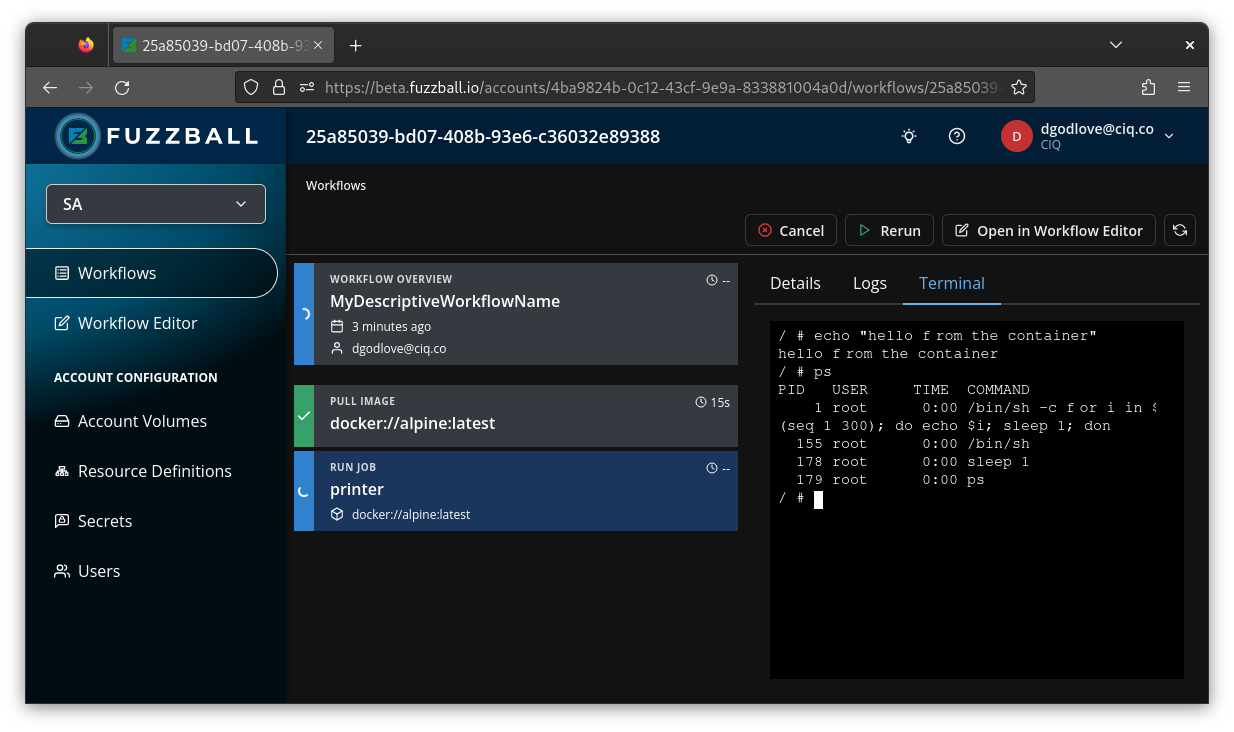
If you are using the CLI, you can execute one-off commands within the container of a running job. It’s not currently possible to perform this action with the web UI, although you can always obtain a shell within a container in a running job through the web UI.
If you already have the “printer” job running within a workflow, the following syntax can be used to execute a command within the container supporting the job.
$ fuzzball workflow exec <workflow uuid> printer cat /etc/os-release
NAME="Alpine Linux"
ID=alpine
VERSION_ID=3.19.1
PRETTY_NAME="Alpine Linux v3.19"
HOME_URL="https://alpinelinux.org/"
BUG_REPORT_URL="https://gitlab.alpinelinux.org/alpine/aports/-/issues"
$ fuzzball workflow exec <workflow uuid> printer ps
PID USER TIME COMMAND
1 root 0:00 /bin/sh -c for i in $(seq 1 300); do echo $i; sleep 1; done
65 root 0:00 sleep 1
66 root 0:00 psYou can obtain a shell in a container supporting a running job within a workflow on your local terminal.
Obtaining a shell in a running container through the CLI involves running the exec command with the
--tty option.
$ fuzzball workflow exec --tty <workflow uuid> printer /bin/sh

/ # ps
PID   USER     TIME  COMMAND
    1 root      0:00 /bin/sh -c for i in $(seq 1 300); do echo $i; sleep 1; done
  259 root      0:00 /bin/sh
  265 root      0:00 sleep 1
  266 root      0:00 ps